Your Account
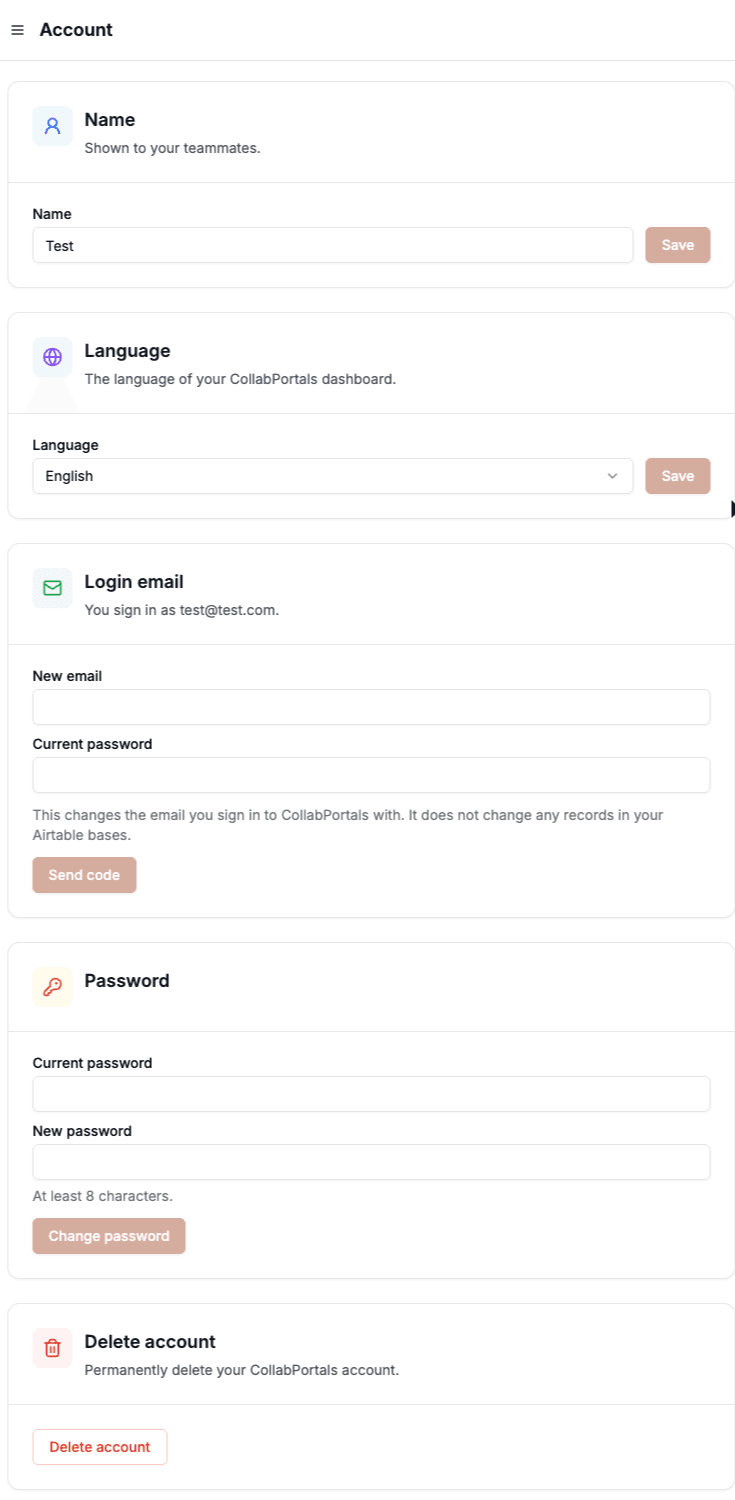
Change the name, dashboard language, login email and password on your CollabPortals account, or delete the account, from the Account page.
Overview
The Account page holds the details you sign in to CollabPortals with: your name, the language of your dashboard, your login email and your password. You can also delete your account from it.
Open it from the admin sidebar, under Account, then Account. Everyone on a team has their own account, so owners, creators and editors all see it.
These are your admin details, not your portal users'. Portal users sign in with the email in your Airtable user table, and you change that in Airtable. See portal user authentication.
Changing your name
Edit Name and click Save. The name is shown to your teammates.
Changing your dashboard language
Under Language, pick a language and click Save. The CollabPortals dashboard then shows in that language. Each language is listed in its own name, such as Français, so you can always find your way back to English.
This changes only your own dashboard. It does not change the language your portal users see. To change or translate their wording, see portal labels.
Changing your login email
- 1
Enter the new address
Under Login email, type the address in New email, enter your Current password, then click Send code.
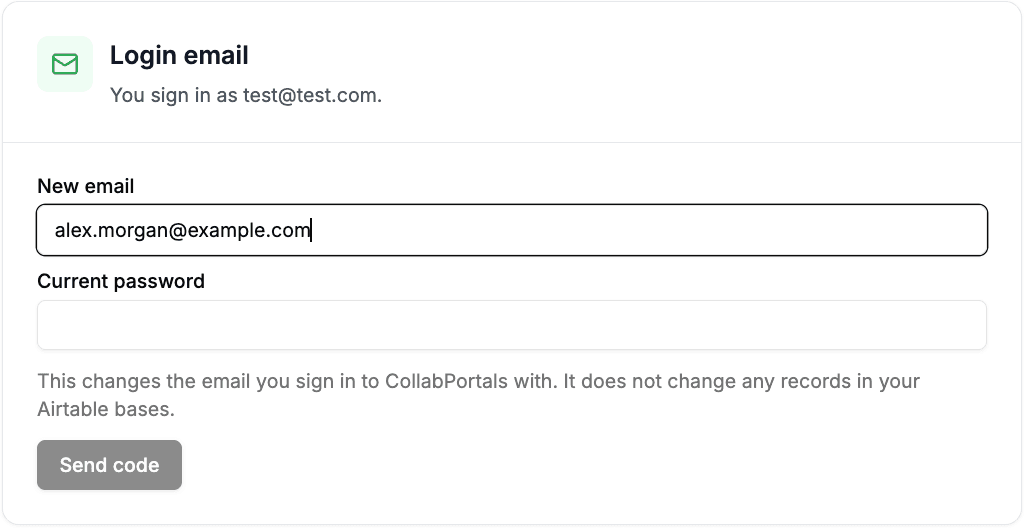
Enter the new address and your current password, then click Send code. - 2
Enter the code
We email a code to the new address. Type it into Code and click Confirm. The code expires after 15 minutes. If it has expired or did not arrive, click Start again.
Your email changes only once the code is confirmed, so a typo cannot lock you out. We also email your old address to say the email was changed.
If you own the team, your billing email in Stripe moves to the new address too, so invoices follow you.
Changing your login email does not change any records in your Airtable bases, and it does not affect your Airtable connection or your portals.
Changing your password
Under Password, enter your Current password and a New password of at least 8 characters, then click Change password. Any password reset link we emailed you before the change stops working.
If you have forgotten your current password, sign out and use Forgot your password? on the login page.
If you have no password yet
If you signed up with only your email, you have no password, and the card is called Set a password instead.
- 1
Ask for a code
Click Send code. We email you a code to confirm it is you.
- 2
Set the password
Enter the Code and your New password, then click Set password. If the code did not arrive, click Send a new code.
If you came in through an emailed sign-in link in the last 30 minutes, we already know the inbox is yours, so there is no code: just enter a new password and click Set password.
After you sign in with an emailed link, we also ask you to set a password in a box over the dashboard. Click Not now to close it, and we ask again the next time you sign in with a link.
Until you set a password, use Email me a sign-in link instead on the login page to get back in. The link works once, for 30 minutes. You also need a password before you can change your login email or delete your account, since both ask for it.
Deleting your account
At the bottom of the Account page, click Delete account, enter your Current password and click Delete my account. You are signed out straight away. This cannot be undone.
What goes depends on your role:
- If you own the team, your team and every portal in it are deleted, and anyone using those portals loses access at once. Your subscription is cancelled and you will not be charged again.
- If you are a creator or editor, only your account goes. Portals you created stay with the team, and the owner manages them from then on.
If you own a team that has other members, remove them from the Team page first. Suggestions you made on the public roadmap stay up, without your name.
Deleting your account does not touch your Airtable bases or their records.