Portal User Authentication
How portal users sign in: the email and 6-digit code flow, signing in on the email alone, letting people register themselves, sessions, and the login email.
Overview
Portal users authenticate by email, with no passwords and no accounts. This keeps the login process simple for end users while ensuring only authorized people can access your portal.
Two settings on the portal change how this works, and both are off by default:
- Turning the code off signs a person in on their email address alone, with no second step.
- Self-registration lets someone who is not in your user table create their own record from the login screen.
The flow below is the default: email, then a 6-digit code, and only for people already in the user table. Both settings are covered further down.
A third setting, Make this portal public, lets people browse without signing in at all. On a portal with roles they can still sign in to get their own role; on a portal without roles it removes the sign-in. See Making a Portal Public.
Authentication Flow
- 1
User enters their email
On the portal login page, the user enters their email address. This email must match a record in the portal's user table.
- 2
CollabPortals validates the email
CollabPortals checks the user table for a matching email. If no match is found, the user sees an error and cannot proceed, unless self-registration is on, in which case they can sign up instead.
- 3
Verification code is sent
A 6-digit code is sent to the user's email address. The code is valid for 15 minutes.
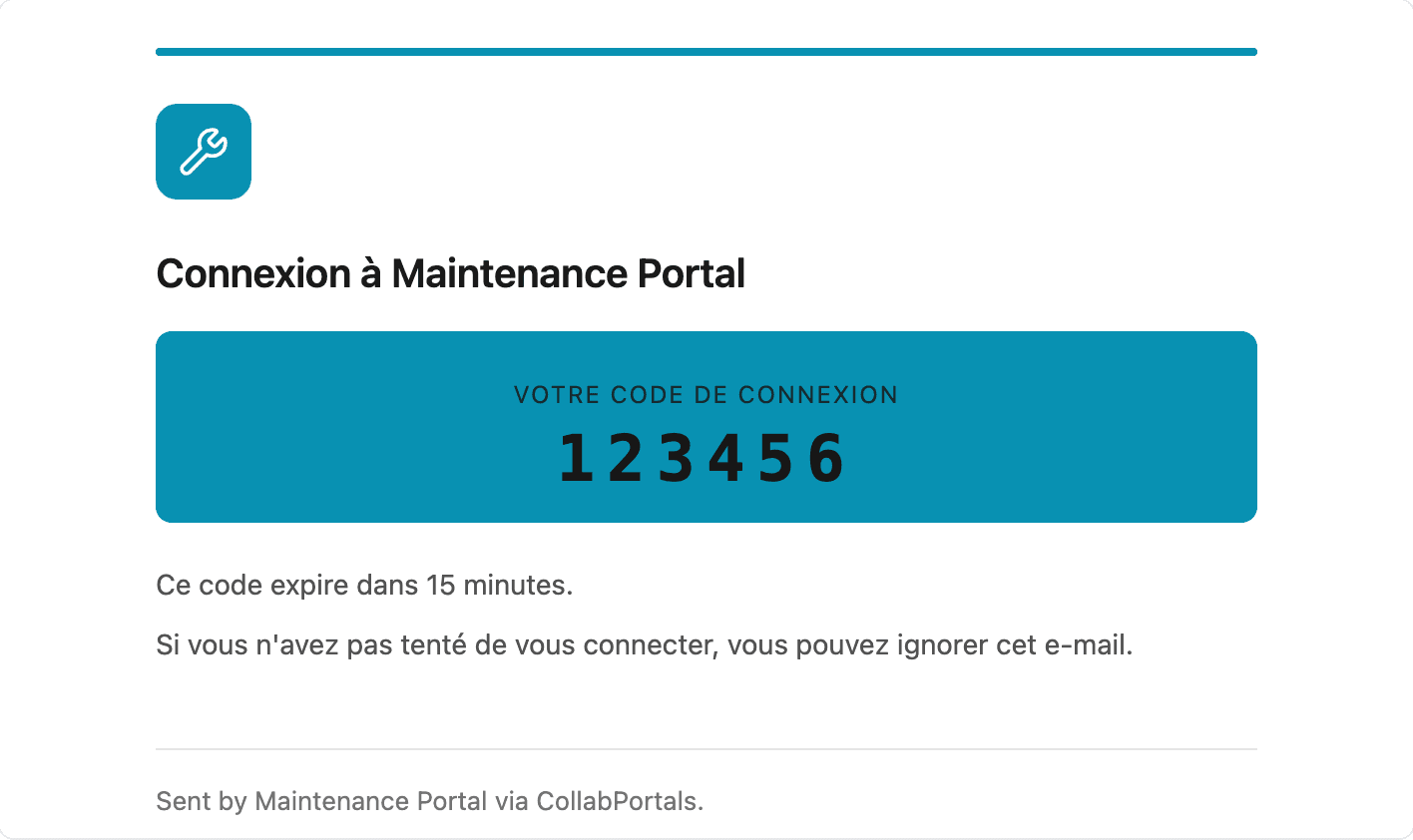
The email carries your portal's name, logo, and brand color, so the person receiving it can tell who it is from. See Customizing the login email below.
- 4
User enters the code
The user enters the code on the verification screen. If correct, they're authenticated.
- 5
Session is created
CollabPortals creates a JWT session token. The user is now logged in and can access the portal.
Customizing the login email
The login code email is the one email every portal user is guaranteed to receive, so it is worth making it look like yours.
Open your portal in the admin, go to Portal Setup, then the Emails tab. You get a live preview of the email as your users receive it, plus a Send me a test button that puts a real copy in your own inbox with a sample code.
What you can change, top to bottom as the recipient reads it:
- Email subject. Defaults to
Your <portal name> login code. Leave it empty to keep the default. - Preview text. The line an inbox shows beside the subject. It is only used when you have not set an intro line; when you have, inboxes preview the intro instead.
- Heading. The line at the top of the email, "Sign in to " by default.
{portal}is replaced with your portal's name. - Intro line. An optional line of context above the code, for example "Use this code to reach your supplier dashboard." Plain text, no links.
- Code caption, expiry line, and ignore line. The words around the code itself: "Your login code", "This code expires in minutes.", and "If you did not try to sign in, you can ignore this email."
Your logo and brand color come from the Design tab, and the email picks them up automatically. Nothing on the Emails tab is required: leave every box empty and the email still arrives with your portal's name on it. Together with the portal's Labels tab, this is enough to send the login email entirely in your users' language.
What you cannot change yet
The email is sent from hello@collabportals.com with your portal's name as the sender name, so it arrives as "Stockent" rather than "CollabPortals". Sending from your own address, such as login@yourcompany.com, needs domain verification and is not supported yet. Let us know if you need it.
Signing In Without a Code
Under Login in your portal's settings, Require an email login code can be switched off. The person types their email, and if it matches a record in the user table they are signed straight in.
This removes the only factor proving the person owns the address. Anyone who knows a user's email can sign in as them, so it belongs on portals where the data is not sensitive and the friction of a code is not worth it. The admin screen says the same thing next to the switch.
Everything else is unchanged: sessions, roles, permissions and record scoping all work the same way.
Self-Registration
Also under Login, Allow self-registration puts a Sign up button on the login screen. A visitor fills in a short form and CollabPortals creates their record in your user table, so they no longer have to be added in Airtable first.
The form holds the fields your default role can create, in your field order, and always has its own input for the email address. Linked record and attachment fields are never on it, whatever their permissions, because both need a signed-in portal to work.
A notice above the Sign up button
Under the same switch there is a rich text box for a notice. It appears on the sign-up form itself, below the fields and directly above the form's own Sign up button, which is where someone has to read an agreement before accepting it. It takes headings, bold, lists and links, so it covers the things a form alone cannot say: terms a visitor is agreeing to, who the portal is for, or a link to an agreement you host elsewhere. Links open in a new tab, so someone who opens your terms does not lose what they have typed.
Pair it with a checkbox field on your user table, set to Required for your default role, when a visitor has to confirm they have read it. A required checkbox left unticked is refused by the server, not only by the browser.
Your wording is kept rather than cleared when you switch self-registration off, so turning registration back on brings the notice back with it.
Why No Passwords?
The email + code approach has several advantages:
- No password management - Users don't need to remember or store passwords
- No registration - Users don't need to create an account
- Reduced friction - Login is fast and familiar (similar to "magic links")
- Email-based identity - The email field in Airtable is the single source of truth
Session Management
After authentication, CollabPortals issues a JWT (JSON Web Token) that stores the user's identity:
- Duration - By default a user stays signed in for about 7 days after their last visit. Visiting renews the session, at most once a day, so someone who uses the portal every few days rarely has to sign in again. Because renewal is daily, the real window can be up to a day shorter than the setting
- Configurable - Under Login, Signed-in cookie duration sets that length: 1, 7, 14, 30 or 90 days. A shorter length applies to people already signed in on their next visit; a longer one within a day of their next visit
- The same for every sign-in method - Signing in with a code and signing in on the email alone give the same session
- Automatic - The token is stored in the browser and sent with each request
- Stateless - No server-side session storage needed
When a session expires, the user is redirected to the login page to re-authenticate. A user you remove from the user table cannot keep their session going: the next renewal checks they are still there, and every page they load already does.
Each browser and device holds its own session, so someone who signs in on their phone and their laptop signs in once on each.
A session belongs to one portal: it is signed for that portal and gives no access to any other. But the browser holds one session cookie per site, so signing in to a second portal on www.collabportals.com replaces the first sign-in rather than running alongside it, and going back to the first portal means signing in again. Portals on their own custom domains are separate sites, so their sessions do sit side by side.
How User Identity Works
When a portal user is authenticated, CollabPortals knows:
- Who they are - Their email and user table record
- What role they have - If roles are configured, the role field determines permissions. Someone holding several roles views the portal as one of them at a time and can switch between them; see role-based access
- What data they see - On a table scoped to its owner, the records that belong to them. See Record Ownership
This identity is used for:
- Scoping records on tables set to "Only their own records"
- Applying the correct role-based permissions
- Auto-linking new records to the user when creating
Email Field Requirements
The email field in your user table must contain valid email addresses, and each address should appear on only one record.
Almost any field type that resolves to text can be the email field, not just Airtable's email and singleLineText types. Formulas, rollups, lookups, synced fields, long text, phone, URL and single select all qualify, so an address assembled by a formula is a perfectly good choice. The picker only rules out types that cannot hold an address at all: numbers, dates, checkboxes, ratings, durations, attachments, buttons, multiple selects, collaborators, linked records and auto numbers.
Nothing stops you having the same address on two records. If you do, the person is signed in as whichever record Airtable returns first, which may not be the one you expect. Keep the addresses unique.
Security Considerations
- Verification codes expire 15 minutes after they are sent
- Entering a code is rate-limited: 5 attempts per 15 minutes, per portal and email address
- Sessions use signed JWTs that cannot be tampered with
- All communication happens over HTTPS
Note that requesting a code is not rate-limited on the default flow, only the attempts to enter one. Someone who knows an address can therefore cause codes to be sent to it.
Next Steps
- Viewing Records - What users see after logging in
- Creating a Portal - Setting up the user table
- Role-Based Access Control - Assigning roles to users
- Record Ownership - Deciding which records each user sees