Field Permissions
Set what each field does in a portal: whether it is visible, on the create form, on the edit form, required, and what order the fields appear in.
Overview
Field permissions let you control where each individual field in a table appears. While table permissions control broad actions (view, create, edit, delete), field permissions fine-tune exactly which data users see and interact with.
For examples of which fields teams choose to hide, see CRM portals and insurance portals.
The Four Settings
Each field has four switches:
| Setting | Where it applies |
|---|---|
| View | The table, gallery and kanban cards, the calendar, and the record detail page |
| Create | The create form, and the sign-up form if the table is your user table |
| Edit | The edit form |
| Required | Whichever of the create and edit forms the field appears on |
View, Create and Edit are independent of each other on a field the portal can write, so any combination of the three is expressible and none of them implies another. On a field Airtable computes, Create and Edit cannot be turned on at all; see Computed Fields below.
Required is the exception. It is a property of a form, so it stays greyed out until the field is on one: turn on Create or Edit and it becomes available, and clearing the last of the two clears it again.
A field with everything off does not appear in the portal, with four exceptions under Fields a Layout Needs below. Use it for internal data (IDs, admin notes, working columns) that portal users don't need.
The sign-up form is narrower than the create form. Linked record and attachment fields are never on it, whatever their Create setting, because both need a signed-in portal behind them and the sign-up form runs before anyone is signed in.
Configuring Field Permissions
- 1
Open the page's Fields tab
In the portal admin, pick a page for the table you want to configure in the left-hand menu, then switch to the Fields tab. Every field in the table is listed with its switches.
The switches belong to the table, not the page, so if the table has more than one page you change them on its main page. On any other page of the same table they are greyed out, along with a field's linked-record allowlist and duration format, and hovering one names the page where they are set.
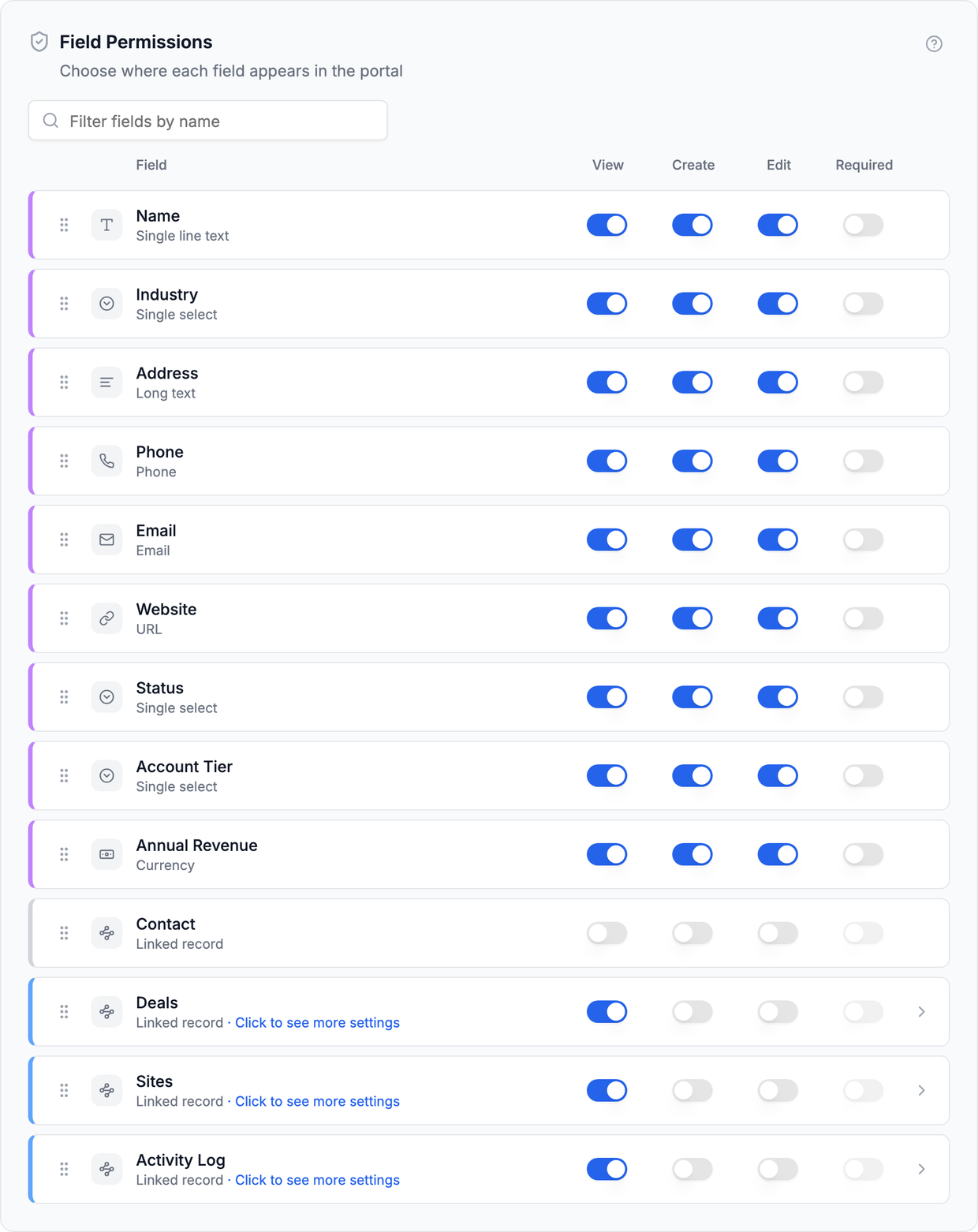
Every field in the table, with its four switches. The handle on the left of each row sets the field's position. - 2
Find the field you want
On a table with a lot of fields, type into Filter fields by name above the list to narrow it to the one you are looking for. The filter matches the field name, not the type.
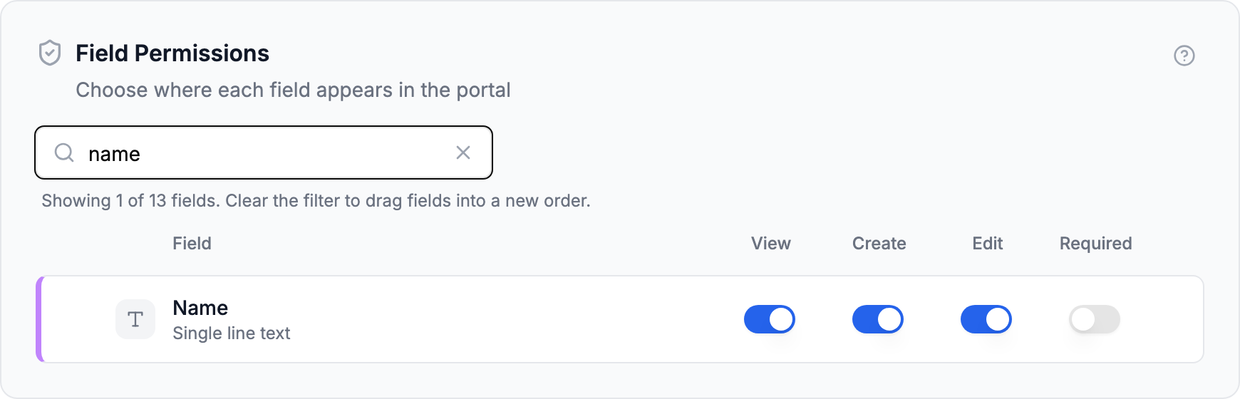
Filtering to one field out of thirteen. Clear the filter to go back to the full list, which is also what dragging needs. - 3
Turn on what each field needs
Switch View, Create, Edit and Required on or off per field. Click the row itself to open the extra settings for that field, such as the linked-record allowlist. Remember to save.
- 4
Change several fields at once
Tick the checkbox at the start of each field you want to change, or the one above the list to select every field shown. A bar appears above the list with On and Off for each of View, Create, Edit and Required, and applies that change to every selected field.
It follows the same rules as the individual switches. A field Airtable calculates is left out of a Create, Edit or Required change, and Required is only turned on for fields that are on the create or edit form. The bar tells you how many fields it changed and how many it skipped, and why.
The checkbox above the list works with the filter, so you can filter to a group of fields, select them all, then filter to another group and add those too. Fields you selected that the filter is hiding are still changed, and the bar counts them so you know. Bulk changes apply to the role you are editing, and still need saving.
Combinations Worth Knowing
Because the settings are independent, a few useful patterns fall out:
View without Create or Edit
The classic read-only field. It shows in the table and on the record detail page as plain text, with no input control.
Good for: calculated fields, status fields your team manages, reference data.
Create without Edit
A write-once field. The user sets it when they create the record, and it is locked from then on.
Good for: a reference or order number, a submission date, a category that should not move after intake.
Edit without Create
A field assigned after the record exists, so the create form stays short.
Good for: a Status or Owner field your team fills in once the record has been triaged.
Edit without View
The field is collected on the form but does not appear on any read surface.
Good for: a table with First Name, Last Name and a calculated Full Name. Show Full Name on the table and detail page, and collect First and Last on the forms, so the user never sees three name fields at once.
Create or Edit without View is a layout choice, not a way to keep a value secret. The form input still shows the current value to anyone who opens it, so treat a field you let someone edit as one they can read. Switching everything off is what keeps a value out of the browser, and it works for every field except the four named under Fields a Layout Needs below. Check yours is not one of them before relying on it.
Turn Required on for fields that are essential to your workflow, like a project name or due date. It applies on whichever forms the field appears on, so a create-only required field is required at intake and never asked for again.
Field Order
Drag a field by the handle on the left of its row to change where it appears. Each page has its own order (per role, if you use roles), and within a page it drives every surface: the table columns, the gallery, kanban and calendar cards, the record detail page, and the create and edit forms. The sign-up form follows the order on your user table's main page.
The order is a page's own setting, unlike the switches, so it can be dragged on every page of a table. A table with two pages can put different fields first on each, and a page you add starts in Airtable's order.

The field pickers on the Display tab still choose which fields each view shows. They do not decide the sequence, so a field sits in the same place wherever it appears on a page and you only arrange it once per page.
Dragging works on the full list. If you have the name filter active, clear it first: reordering a filtered list would move a field past rows you cannot see.
Put the fields people fill in most at the top of the form and the rarely-touched ones underneath. Combined with Create and Edit, you can keep an intake form to three questions while the edit form carries the full record.
Once you have arranged a page's order, fields you add in Airtable later appear at the end of it rather than in the middle, so a new column never quietly interrupts a sequence you arranged. On a page you have never reordered, fields simply follow Airtable's order. Drag a new field where you want it. Fields you delete in Airtable drop out of the order on their own.
New Fields from Airtable
A field you add in Airtable after building your portal starts with everything off. It appears in the field permissions list on the next schema refresh, at the end of any order you have arranged, with View, Create, Edit and Required all unticked. Nobody sees it until you say so.
This is the opposite of how fields behave when you first build a portal, where everything the portal can show arrives already on so you are not ticking forty switches by hand. The difference is deliberate: adding a column to a base you use for other things should not quietly publish it to your portal users.
The portal does not flag new fields for you, so look for them in the field list after you change your base.
Adding a field in Airtable is safe. If you want your portal users to see it, open the Fields tab on the table's main page, turn on the switches the field needs, then press Save.
Fields a Layout Needs
Four fields are read without a permission check, because a layout is built around them and dropping them would break it. Switching everything off does not keep these out of the browser:
- The field that titles the record, its record name.
- The gallery cover image field.
- The kanban group field.
- The calendar date field.
None of the four pickers filters by visibility, so a hidden field can be chosen for any of them. In each case the portal is already showing the value: the cover image is on screen, the kanban column header prints the group value, and a calendar event's position is its date. Keeping the layout working is the trade.
If a value must not reach portal users, check it is not the record name and not the cover, group or date field for that table's view. If it is, point the view at a different field, or the value travels to the browser whatever its switches say.
The table view's own Group by, and the FAQ view's question and answer, are not in this set, and are safe in two ways rather than one: their pickers only offer fields the role can view, and the view re-checks at render, so a field hidden after it was chosen is dropped rather than used. Nothing hidden reaches the browser through either.
Interaction with Table Permissions
Field permissions work within the context of table permissions:
- If a table's View permission is off, field permissions don't matter, since the entire table is hidden
- If a table's Edit permission is off, there is no edit form, so a field's Edit setting has nothing to apply to
- If a table's Create permission is off, the same goes for a field's Create setting
Example
| Table Permission | Field Settings | Result |
|---|---|---|
| View: On, Edit: Off | View, Edit | Shows in the table and detail page, no edit form to appear on |
| View: On, Edit: On | View, Edit | Shows everywhere, and is editable |
| View: On, Edit: On | All off | Not visible at all |
| View: On, Create: On | View, Create, Required | Required in the create form, read-only afterwards |
| View: On, Edit: On | Edit only | Collected on the edit form, absent from the table and detail page |
Computed Fields
Some Airtable field types are always read-only regardless of permission settings:
- Formula fields
- Rollup fields
- Count fields
- Lookup fields
- AI text fields
- Button fields
- Auto number fields
- Created time and Last modified time fields
- Created by and Last modified by fields
- Collaborator and Collaborators fields
- Sync source fields on a synced table
For these, the Create, Edit and Required boxes are greyed out, and View is the only setting that applies. Most of them are values Airtable calculates, so the portal can show them but never write them. The collaborator fields are read-only for a different reason: Airtable only accepts a write to them from someone who is a collaborator on the base, and your portal users are not.
Best Practices
- Start restrictive - Begin with fields off and selectively reveal what users need
- Hide internal fields - IDs, internal notes, and admin-only flags should be hidden
- Require key fields - Turn Required on for fields critical to your workflow
- Lock what should not change - Turn Create on without Edit for reference numbers and intake dates
- Review after Airtable changes - When you add fields in Airtable, remember to update their permissions in CollabPortals
Next Steps
- Table Permissions - Set table-level actions
- Role-Based Access Control - Different field permissions per role
- Summary Fields and Record Detail - Pick which viewable fields show on the row vs the detail page, and the order they appear in
- Supported Field Types - How each field type renders