Record Page Layout
Arrange a record's detail page in your portal: group fields into sections with headings, choose one, two or three columns, make fields full width, and fold away sections people rarely need.
Overview
When someone opens a record in your portal, its detail page lists the record's fields in a grid, in the order you set on the Fields tab. That works for a short record. For a long one, a page of thirty fields in one grid is hard to scan.
The Record tab lets you arrange that page. Group fields into sections with headings like "Job", "People" and "Site access", choose how many columns each section uses, make a long field such as a description span the full width, and let readers fold away a section they only sometimes need.
Nothing changes until you edit it. A page you never touch keeps its single grid.
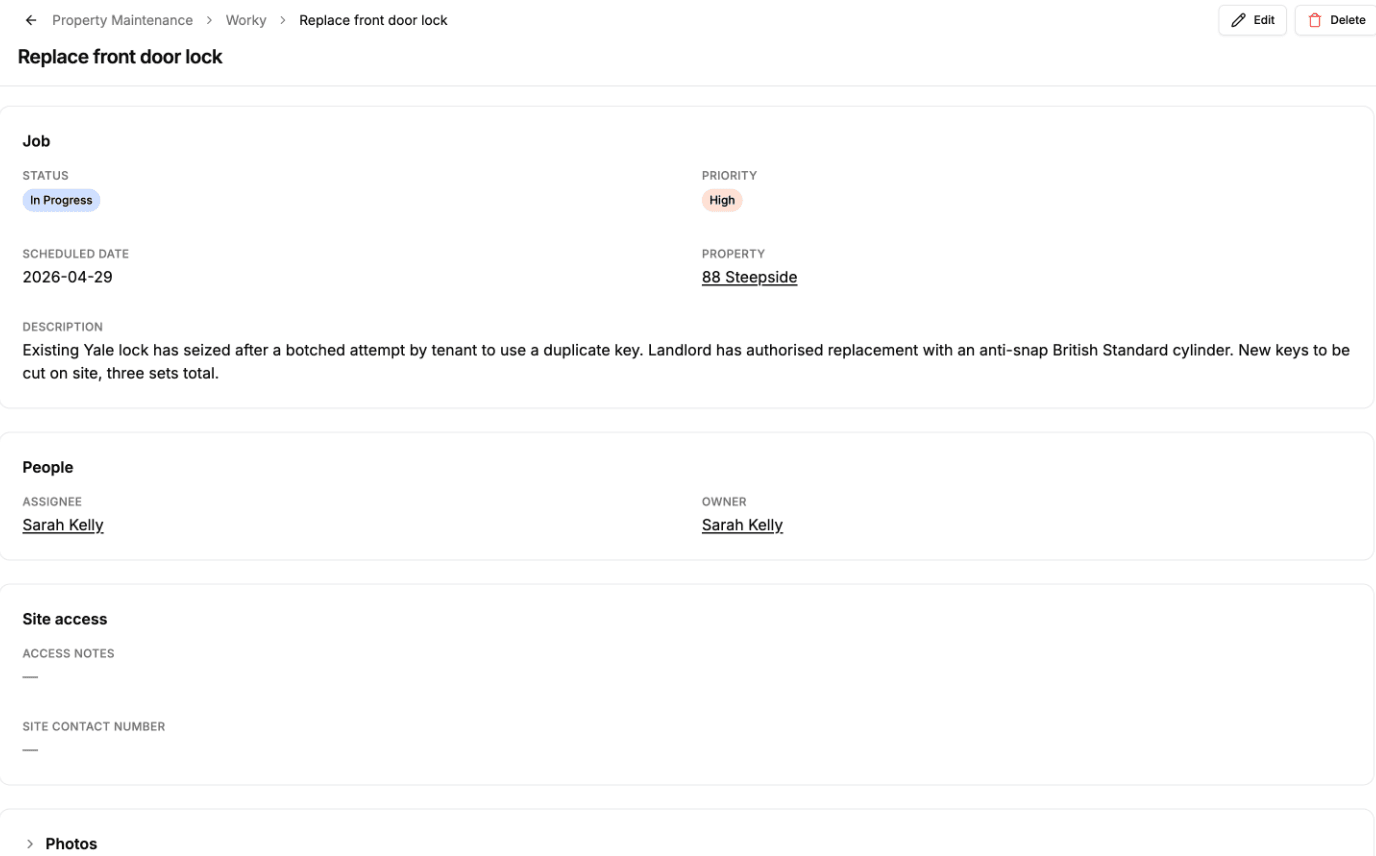
Arranging a Record Page
- 1
Open the Record tab
In your portal editor, open the page from the page menu and choose the Record tab, next to Display. It shows the page as it looks now: one section holding every field the selected role can see, with values from the table's first record so you can see roughly how long each one is.
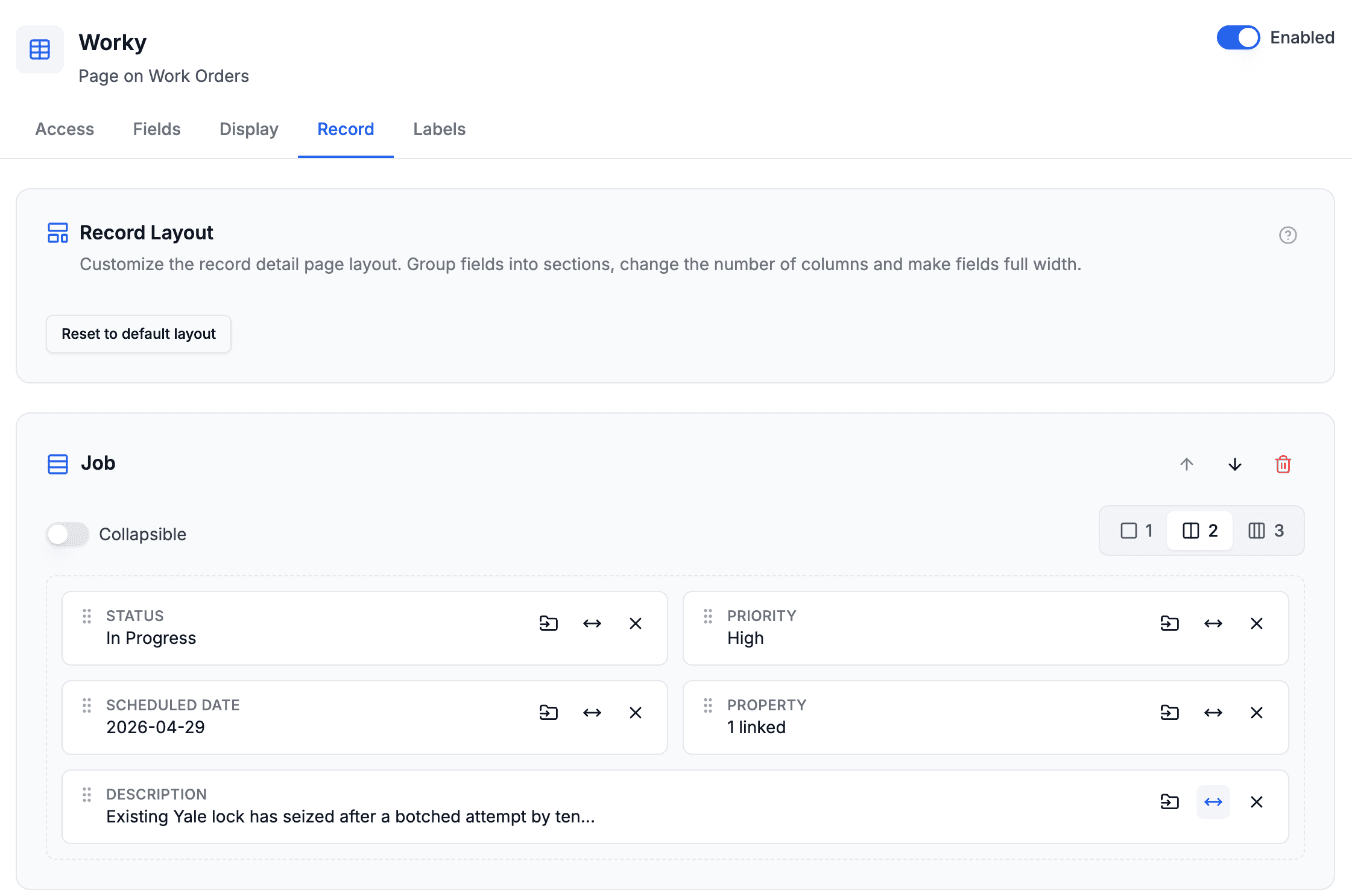
The Record tab. Each section is a card, and each field shows a sample value from the table's first record. - 2
Add sections and give them headings
Click Add section at the bottom, then click the section's title and type a heading. A section without a heading is a plain break between groups of fields.
Use the arrows in a section's corner to move it up or down, and the bin to remove it. Removing a section doesn't remove its fields: they go back to the section that collects everything else.
- 3
Move fields into sections
Drag a field by its handle to where you want it, within a section or into another one. The page rearranges as you drag, so you can see where it will land before you let go.
You can also use the Move to section button on a field to pick a section from a list, or the X to send it back. Every field you haven't put in a section of your own stays in the one section you can't remove, which also catches any field you add in Airtable later, so nothing goes missing from the page. Its fields follow the Fields tab order until you drag one of them to a new place or make one full width. That fixes the position of that field and the fields before it, and the ones after it keep following the Fields tab.
- 4
Choose columns, full width and collapsing
Each section has its own column count: 1, 2 or 3. On phones every section shows one column.
The arrows button on a field makes it full width, spanning every column of its section. It suits long text like notes or a description.
Turn on Collapsible to let readers fold a section away by clicking its heading. Starts open then decides whether it opens folded or not. A section needs a heading to be collapsible, because the heading is what readers click.
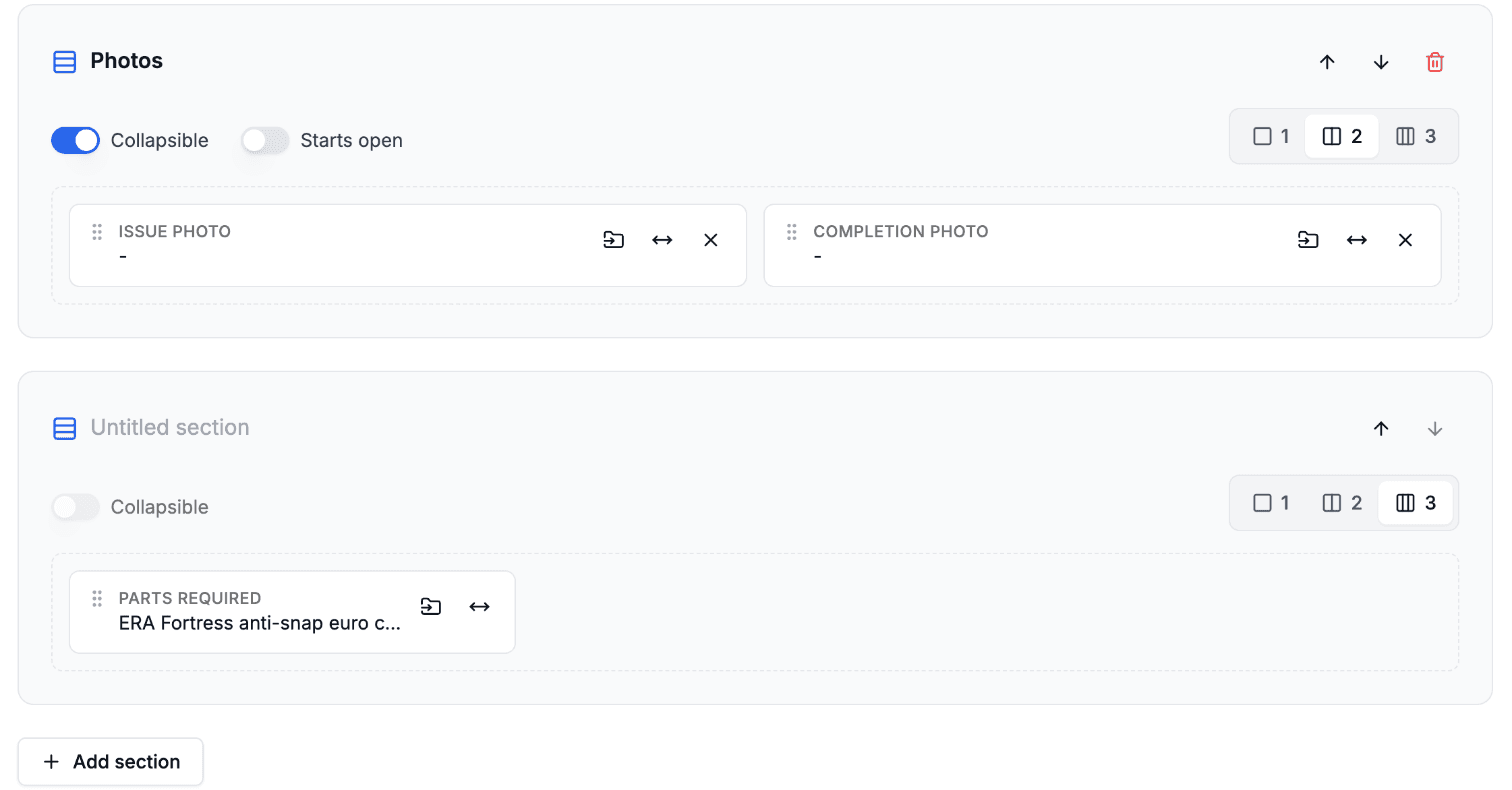
Photos is collapsible and starts closed. The untitled section below collects every field not placed elsewhere. - 5
Save
Click Save in the editor's header. The layout applies the next time someone opens a record from that page.
To go back to a single grid, click Reset to default layout at the top of the Record tab, then save.
Layouts and Roles
If your portal uses roles, each role has its own layout, like every other page setting. Pick a role in the bar above the editor to arrange its page. A role you add later starts with a copy of the Default role's layout, and from then on changing one role's layout doesn't change any other.
A layout only arranges fields a role can already see. It never shows a field the role's field permissions hide, and a section whose fields a role can't see is left out of the page for that role, heading and all.
Pages and Record Links
Each page has its own layout. A record opened from a page's list uses that page's layout. A link that only knows the table, such as a linked record or a row in a related tab, opens the record on the table's main page and uses its layout.
Related tabs shown on the record's Details tab, and the field used as the record name, keep their own places: the layout arranges the fields around them.
What Users See
Users see the record's fields grouped under your headings, each section in its own card, with the column count and full-width fields you chose. A collapsible section shows its heading with an arrow, and opens and closes when they click it.
On a phone, every section shows its fields one under the other, with each section separated by a band so groups are easy to tell apart.
Next Steps
- Summary Fields and Record Detail - Choose which fields show on a row or card
- Field Permissions - Hide fields and set their order
- Related Tabs and Nested Tables - Show a record's linked records on its detail page
- Role-Based Access Control - Give each role its own layout