Record Ownership: Show Each User Only Their Own Records
How CollabPortals decides which records a signed-in user owns, and how to scope a table so each user sees only their own, including tables that reach your user table through a lookup.
Overview
Most portals show different records to different people: a client sees their own projects, a contractor sees the jobs assigned to them, a member sees their own registrations. CollabPortals does this with record ownership. When a table links to your user table, each signed-in user can be shown only the records that point at them.
Two settings control it, both on a table's Access tab in the portal admin:
- Record Visibility decides whether a role sees only its own records or every record in the table.
- Ownership Field decides which link defines ownership, for tables that reach your user table by more than one route.
Record Visibility
The Who can see records dropdown has two options:
- Only their own records. Each signed-in user sees just the records they own through the table's ownership field. This is the default for any table that links to your user table.
- Everyone (all records). The role sees every record in the table. View and field permissions and the record filter still apply; only the per-user limit is lifted. Use this for shared reference tables like a product catalog or a list of facilities.
"Only their own records" is available whenever a table has a path to your user table. If a table has no such path, the option is disabled, because there is no way to tell who owns a record.
Ownership Field
A record belongs to a user when the ownership field points at them. Change the field and you change who sees the record.
Left unset, CollabPortals uses the first link to your user table in Airtable field order. With exactly one such link and no lookup that reaches your users, that is the only answer there is, so the setting stays hidden. It appears as soon as there is a choice to make: a second link, or a lookup candidate. With more than one link, for example an Owner link and an Assignee link, the dropdown arrives with that first link already selected, and it is applied whether or not you touch it.
So a table with several links to your user table is already scoped by one of them. Open Ownership Field and check it is the one you meant, because reordering the fields in Airtable would otherwise change who owns what.
Ownership Through a Lookup
Some tables never link to your user table directly. A Structures table links to Cities, and Cities links to Members, so a structure belongs to a member only through the city. Before, a table like this had no ownership path at all, and the only workaround was to copy the link onto it with an Airtable automation, which drifts out of sync silently.
You can now point ownership at an Airtable lookup field instead. A lookup that pulls a link across the chain (the City's Members, surfaced onto the Structure) carries the same identity a direct link would, so it can define ownership with no extra link field to keep in step.
- 1
Add the lookup in Airtable
On the table you want to scope, add a lookup field that follows a link to a table which does reach your users, and looks up that table's link to your user table. In the Structures example, add a lookup on Structures that reads the City's Members link. The lookup must end in a link to your user table: a lookup of a name or an email carries no identity and is not offered.
- 2
Select it as the ownership field
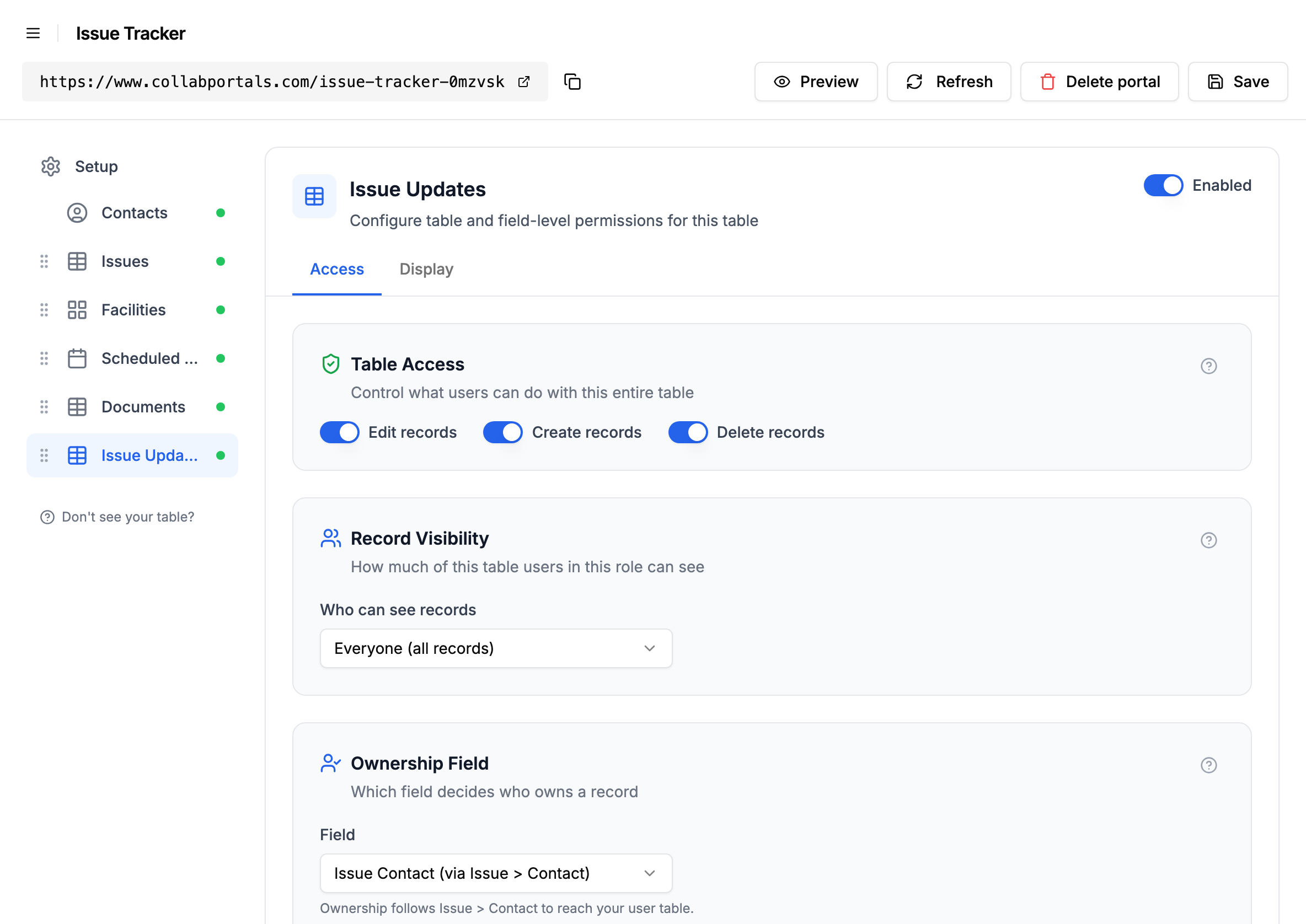
On the table's Access tab, open the Ownership Field dropdown. Lookups that reach your user table appear alongside any direct links, labelled with the route they follow, for example "Members (via City > Members)". Pick the lookup. A line underneath confirms the path.
A lookup is never chosen for you, only a direct link is. So you always opt in to lookup ownership explicitly.
- 3
Set Record Visibility to Only their own records
With the ownership field set, switch Who can see records to Only their own records. Each user now sees only the records their lookup resolves to.
If you also turn on Create for a lookup-owned table, make sure the role can edit the first link in the chain (the link the lookup reads through). A new record has to set that link to belong to anyone, so without edit access to it a create would have no owner and is refused. The admin warns you when this is the case.
Interaction with Other Features
- Record filters are applied to the same fetch as ownership, both conditions at once rather than one after the other. A filter for "Active" projects plus owner scoping gives each user their own active projects. See Record Filtering.
- Roles each have their own visibility mode and ownership field. An internal role can see every record while an external role sees only its own. See Role-Based Access Control.
- Linked-record filtering is a separate control that restricts one link field's picker to a fixed list of records you choose. It has nothing to do with who is signed in. See Linked Record Filtering.
Next Steps
- Record Filtering - Restrict a table to a subset of records by a field condition
- Role-Based Access Control - Give each role its own visibility and ownership
- Setting Up Your Airtable Base - How links between tables shape a portal
- Table Permissions - Enable or disable table-level actions