Portal Pages
Add, delete and reorder the pages in a portal, show one Airtable table on more than one page, and choose which page is a table's main page.
Overview
A portal is a set of pages, and most pages show records from one table in your Airtable base. The left-hand menu in the portal admin lists them, and your portal users see the ones you have put in the sidebar. A page can also show another website instead of a table: see Embed Pages. The rest of this page is about table pages.
Every table in your base gets a page of its own when you build the portal. You can add more, including a second or third page on a table that already has one. A Jobs table could have a kanban board for the team's day-to-day and a calendar of due dates, each in the sidebar under its own name.
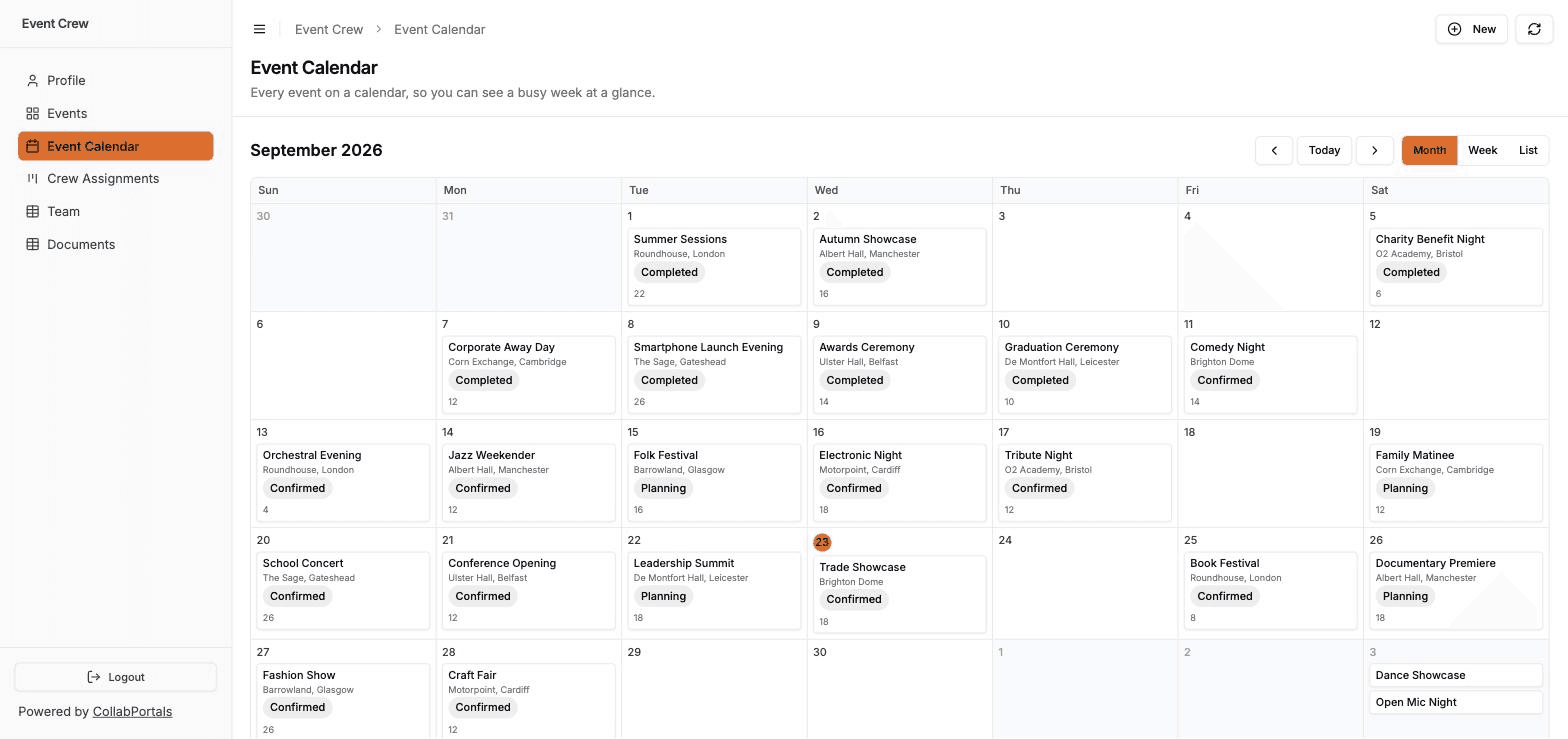
What a Page Owns, and What the Table Owns
Some settings belong to the page, and every page of a table can set them differently:
- Almost everything on the Display tab: the page filter, the view type, which fields each view shows, grouping, the default sort, the filter and sort controls, whether users can export it, whether it shows in the sidebar, and its address
- Everything on the Labels tab: the page name and its own wording
- On the Fields tab, the field order and how a linked record field's related records display
The rest belongs to the table, so it is the same on every page built on that table:
- Everything on the Access tab: table permissions, record visibility and the record filter
- The record name field, although it is set on the Display tab. Changing it on any page changes it for every page of the table.
- On the Fields tab, the View, Create, Edit and Required switches, a link field's allowed records, and a duration's display format
So the table decides which records a role may see at all, and each page can list a narrower set of them with its page filter and lay them out its own way.
The Main Page
One page of each table is its main page. It is where the table's own settings are changed, and it is the page that opens when a link uses the table's Airtable id rather than a page address.
On any other page of the same table:
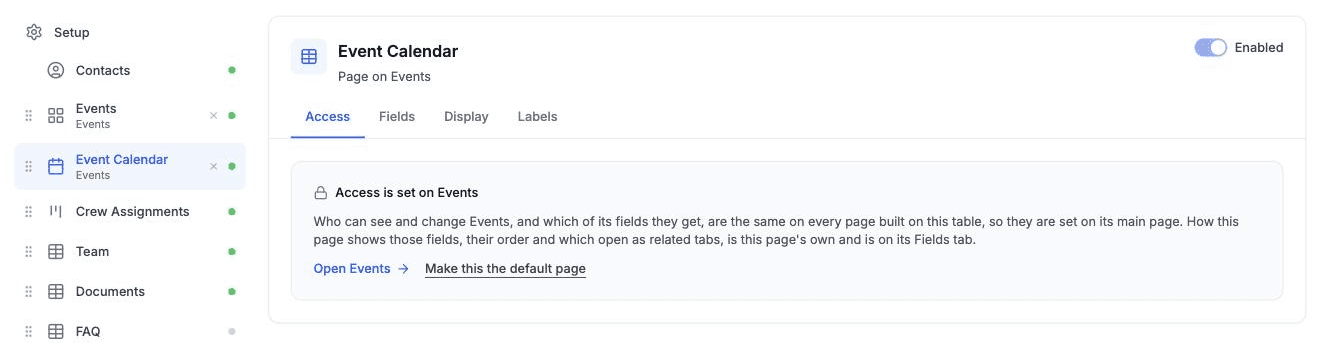
- The Access tab shows a note saying access is set on the main page, with a link to it
- The Fields tab still lets you drag the field order and set related records, but the table's switches are greyed out. Hover one to see which page they are set on.
- The Enabled switch at the top of the page is greyed out too, because it turns the whole table on or off for the role
A table's first page is its main page. A page you add to a table that already has one is not, until you choose to make it so.
Adding a Page
- 1
Press Add page
In the portal admin, press Add page under the list of pages in the left-hand menu.
- 2
Pick the table
Choose the table the page shows records from. A table that already has a page says how many, and picking it gives that table another one.
- 3
Name it and check its address
Type the page name. The Page URL below it fills in from the name as you type, and you can change it. Every page after a table's first needs an address of its own, since the table id already opens the main page.
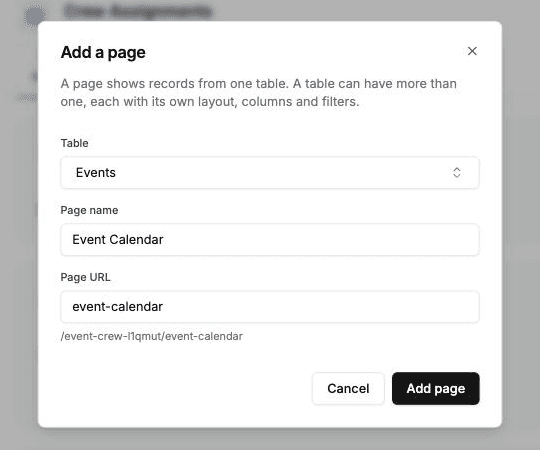
The Page URL fills in from the name. - 4
Set it up and save
Press Add page. The new page appears in the menu, and in the portal's sidebar for every role that can see its table. It starts in Airtable's field order. Set up its Display, Fields and Labels tabs, then press Save. Nothing reaches your portal users until you do. It can also be the portal's landing page.
The name you type is used on every role. To give one role a different page name, open that role and change it on the page's Labels tab.
Filtering a Page
A page filter decides which of the table's records a page lists, so one table can become several pages, such as Open jobs and Closed jobs. Set it on the page's Display tab under Page Filter, with the same conditions as a record filter, including ones that match the signed-in user.
It narrows the table's record filter rather than replacing it. A page lists the records that match both, so it never shows a role more than the table allows. The filter and sort controls your portal users have work within it.
It decides what the page lists, including its export and the counts in its filter controls. It does not stop anyone opening a record: a record the filter leaves out can still be opened from a linked record, and related record tabs show every linked record the role can see. To keep records from a role, use the record filter on the Access tab.
If a condition uses a field you later delete in Airtable, that condition matches nothing until you change it. With all of the conditions the page lists nothing; with any, the other conditions still apply. It never lists more than you meant.
Changing the Main Page
Open the page you want to promote and go to its Access tab. The note there has a Make this the default page link. Press it and confirm with Make default, then press Save.
The table's settings do not move or change. What changes is which page they are edited from, and which page opens for a link that uses the table's id. If the old main page has no address of its own yet, you are asked to give it one first, so links to it keep working.
Deleting a Page
Press the x beside a page's name in the left-hand menu and confirm. The page's layout, columns, filters and address go with it. The table keeps its permissions and its other pages.
If you delete a table's main page, the confirmation names the page that takes over. If you delete the page your portal opens on, its landing page, the portal opens on its home page instead. Like every other change in the editor, the delete happens when you press Save.
Two pages have no x:
- A table's last page, since every table in the portal keeps at least one. To hide a table from portal users, turn off Enabled at the top of its main page. To keep it out of the navigation but still reachable through linked records, take the page out of the sidebar on its Display tab.
- The profile page, which your portal users' own record is shown on. A second page you add on your user table can be deleted like any other.
When You Delete a Table in Airtable
A page whose table you delete in Airtable stops appearing in your portal, and a link to it shows a not-found page. In the portal admin it moves to a Missing from Airtable list below the other pages. Nothing on it can be set up without its table, so delete it with the x and press Save. That list only appears when a page is affected.
We keep a copy of your base's tables for up to ten minutes, so a table you have just deleted can take that long to show. Press Refresh at the top of the portal admin to pick up the change straight away.
Ordering the Menu
Drag a page by the handle on the left of its row to move it. The sidebar and the navigation page in the portal follow the same order. The profile page stays at the top.
Next Steps
- Page Addresses - Give a page a readable web address
- View Types - Choose how each page lays out its records
- Field Permissions - Set what each field does, and each page's field order
- Role-Based Access - Give different users different access to the same tables