Page Addresses
Give a portal page a readable web address, like /jobs, instead of its Airtable table id.
Overview
Every page in a portal has a web address. By default it is the page's Airtable table id, so a Jobs page opens at something like /acme-x7k2p1/tblXk2p9QrsT4.
A custom address replaces the table id with a word you choose, so the same page opens at /acme-x7k2p1/jobs. On a custom domain it is shorter still: portal.acme.com/jobs.
A table can have more than one page, and its table id opens only one of them, the table's main page. Every other page of that table needs a custom address, so the box is filled in for you when you add one, and saving with it empty is refused.
Setting a Page Address
- 1
Open the page's display settings
In the portal admin, pick the page in the sidebar and switch to the "Display" tab. The "Page Address" section is at the top.
- 2
Type the address
Type a word or a short phrase into "Custom address". The line underneath shows the full address the page will open at.
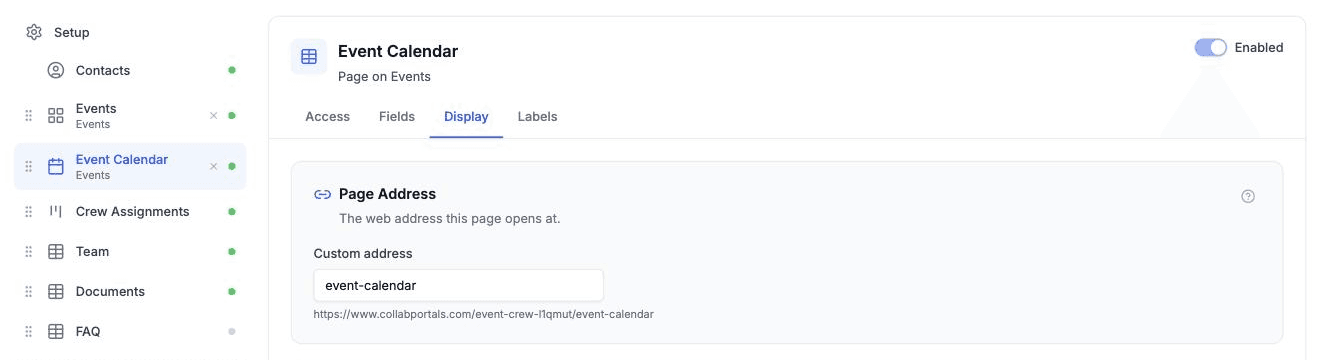
The Page Address section, at the top of the Display tab. Letters are lowercased, and spaces and punctuation become hyphens, so "Open Jobs" becomes
open-jobs. Letters from any language are kept. - 3
Save
The address saves with the rest of the portal configuration. The sidebar, the portal's home page cards, and every link to the page's records use it straight away.
To go back to the table id, clear the box and save. That works on a table's main page only: any other page of the table has no table id address to fall back to.
Links You Have Already Shared
The table id address keeps working after you set a custom one. A link someone bookmarked last month still opens the page, so setting an address never breaks anything.
The table id always opens the table's main page. If you make another page the main one, links that use the table id open that page from then on.
Changing a custom address is different. If /jobs becomes /open-jobs, a link to /jobs stops working. On a table's main page the table id address still works, so anyone with an old link can be pointed there. Any other page has no such fallback, so change its address with care.
Addresses You Cannot Use
A few addresses are taken by the portal itself, and the box tells you when you have typed one:
- profile, signup and nav, which the portal uses itself
- login, admin, api and a handful of other words CollabPortals uses on custom domains
- The portal's own address
- Anything starting with tbl, which is kept for Airtable table ids
- An address another page in the same portal already uses
An address can be up to 60 characters long.
Tips
- One address for every role. A page address is the same whichever role someone signs in with, because a link has to work before the portal knows who is opening it. The Display tab shows it on every role for convenience, but changing it on one changes it for all.
- Pair it with a page name. The address and the name in the sidebar are separate settings. Set the name on the Labels tab.
- Keep it short. An address is most useful when someone can read it out or type it from memory.