Related Tabs and Nested Tables
Show a record's linked records as a tab on its detail page or underneath its fields, and surface any linked table as a page in your portal. Covers related tabs, on-page related records, nested tables, and inline create, edit and delete.
Overview
A lot of data is parent and child: a property has work orders, an order has line items, a project has tasks, a company has deals. CollabPortals shows that child data where it belongs, as a tab on the parent record.
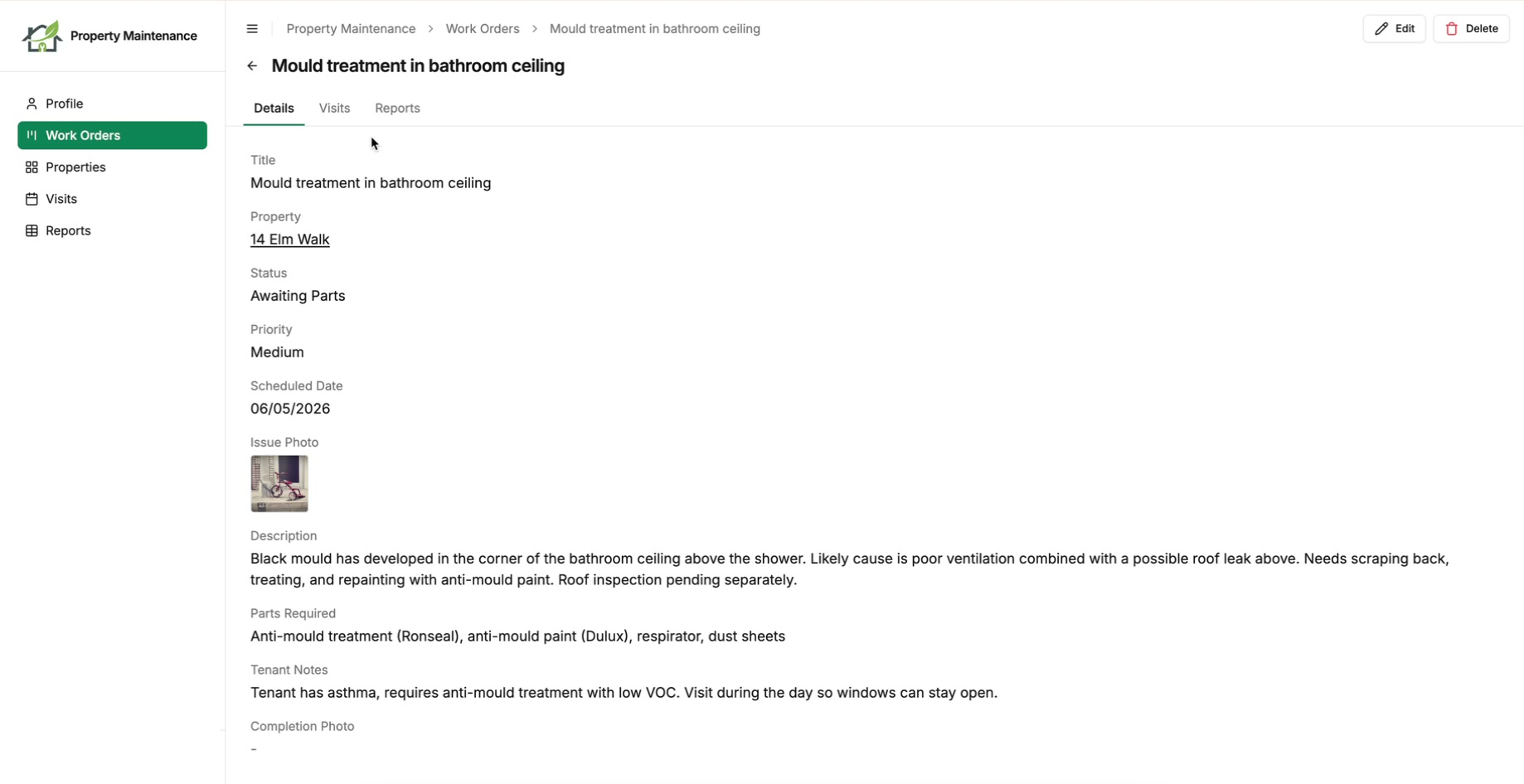
Open a property in your portal and you find a Work Orders tab next to its details, listing only that property's work orders. Open a work order and find its visits and reports. Each tab shows only the records linked to the one you have open.
A table does not need a direct link to your user table to appear in a portal. Any linked table can be surfaced in one of three ways:
- As a related tab nested inside a parent record (a property's work orders).
- Under the record's own fields, so the record and its children are read together without switching tabs.
- As a top-level page in the sidebar, the same as any other table.
Related Tabs on a Record
A related tab shows the children of the record a user has open. Because it follows the parent's link, the child table needs no link of its own to the user table: it is scoped to the parent automatically. A user only ever sees the work orders under the property they opened.
The tab uses whatever view you set on the child table's main page. A Work Orders table set up as a kanban board shows as a kanban inside the tab; set up as a calendar, it shows as a calendar. Field and table permissions carry across too, so if a role can edit work orders, it can edit them in the tab.
A related tab is governed by the child table's own permissions, not the parent's. The tab shows a role exactly what it would see on that table's main page: the same view, fields, edit rights and record access. So a role only sees a related tab if it has view access to the child table, and you control that by configuring the child table for that role separately, the same as any other table. If a role's permissions hide the Work Orders table, that role does not get a Work Orders tab, even on a property they can open.
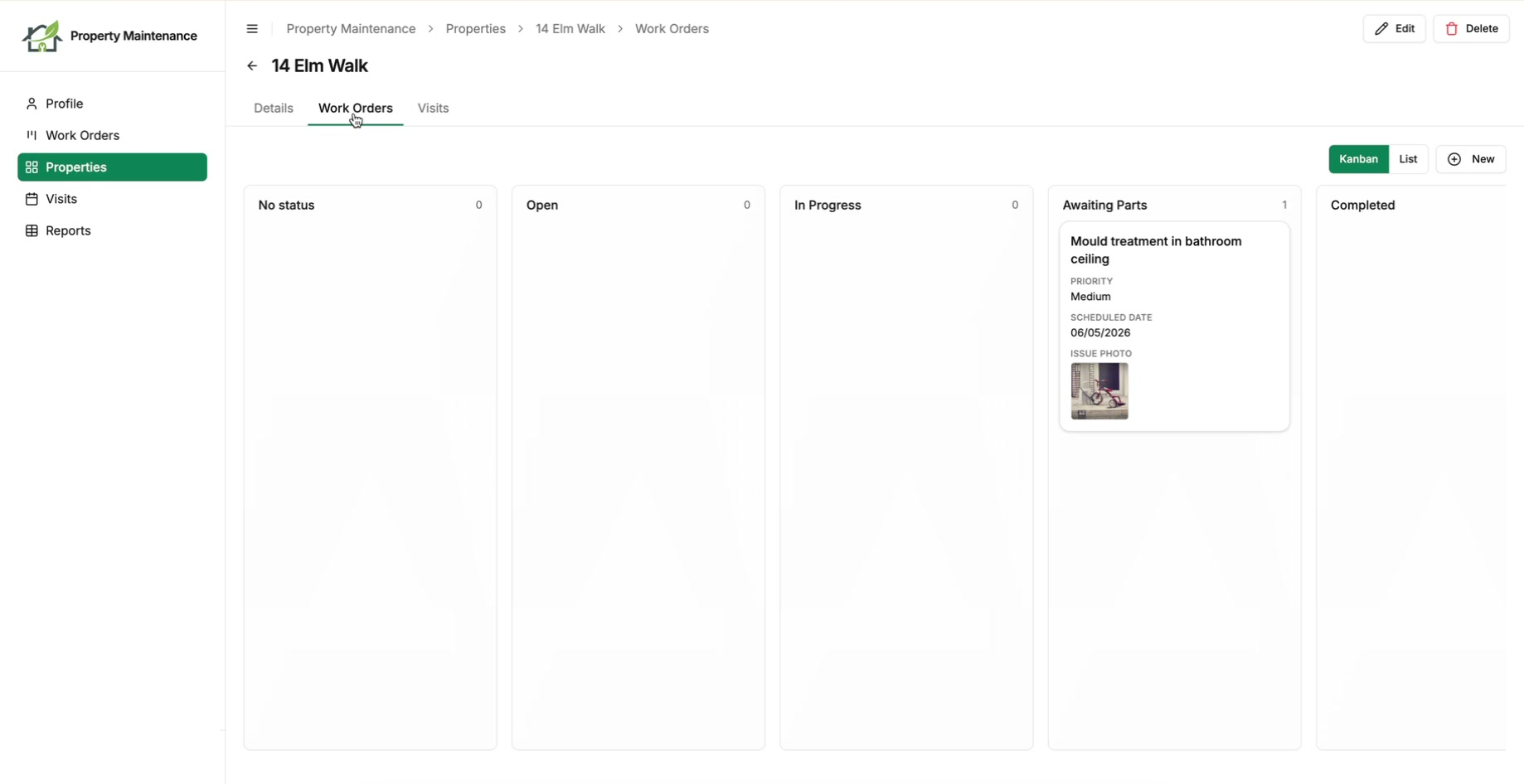
A record can have more than one related tab, and tabs nest. The property above has Work Orders and Visits tabs; open one of those work orders and it has its own Visits and Reports tabs. Each level is scoped to the record you opened.
Turning On a Related Tab
The child table needs no link to your user table. The tab follows the parent's link, so it is scoped to the parent for you. You turn a tab on from the parent table's linked record field.
- 1
Open the parent table and find the linked field
In your portal admin, open the parent table's page (Properties), switch to the Fields tab, and scroll the field list to the linked record field that points at the child table (the Work Orders field).
Where linked records display is set per page, so if the parent table has more than one page, each can show them differently.
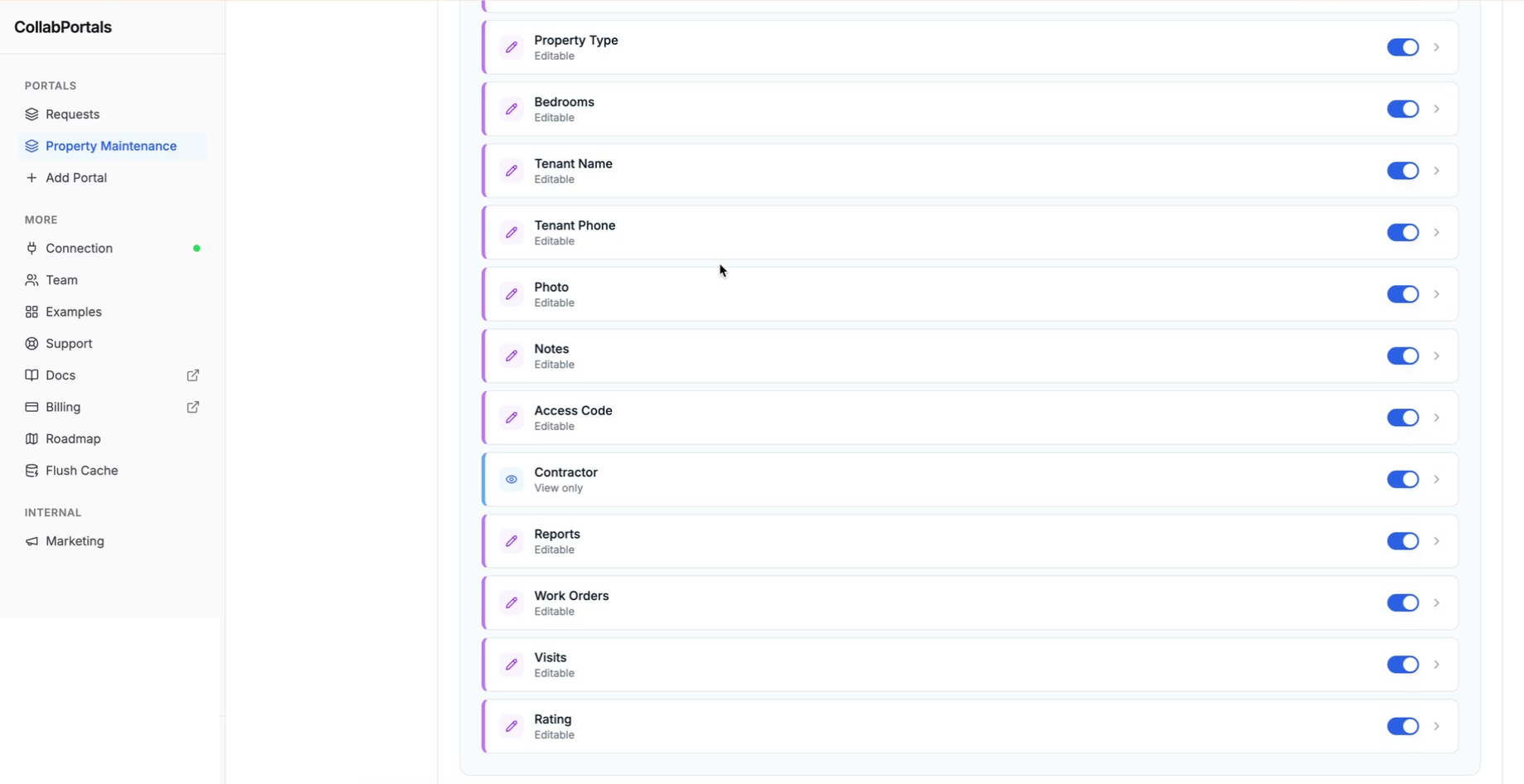
On the Properties page's Fields tab, find the Work Orders linked record field in the field list. - 2
Choose how the linked records display
Click the field to open its options, then set Linked records display. It offers three placements:
- Inline links, the default. The linked records stay among the record's other fields as a list of links.
- Under details, which renders them underneath the record's fields.
- As a tab, which gives them their own tab beside the record's details.
Pick As a tab to get the Work Orders tab described above.
By default the linked list moves out of the record's fields when you pick either of the last two. If you would rather keep the inline links as well, switch on Also show the inline links.
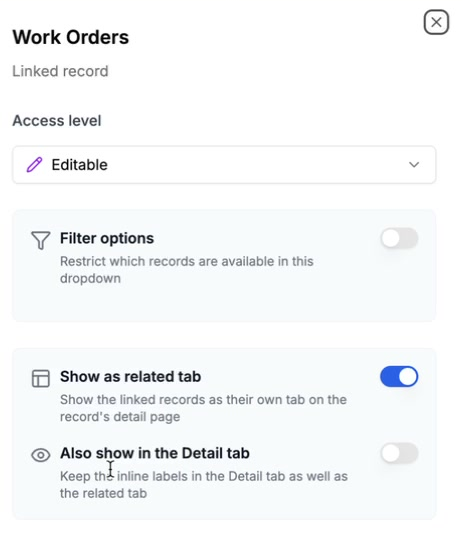
Set Linked records display for the linked field. Keep the links among the fields too with Also show the inline links. - 3
Save the portal
Save the portal. Open a property in the portal and the Work Orders tab is there, listing that property's work orders, ready to switch between alongside its details.
A record can have several related tabs. A company can show Deals, Contacts and Notes as separate tabs on its detail page, each its own linked table. Set Linked records display to As a tab for each field you want to surface. A tab appears whenever the field is set to it and the role can reach the child table, so a record with nothing linked yet shows an empty tab rather than no tab.
Related Records on the Record Page
Sometimes a record has one set of children that is the whole point of opening it, and a tab is one click too many. A conversation and its messages read as a single page: you want the message list under the conversation's own fields, not behind a tab.
Set Linked records display to Under details for that field. The child records render underneath the record's fields, headed by the field's name, using the same view the child table is set up with. Everything else matches a related tab exactly. The rows are scoped to the record you have open, the child table's permissions and view type apply, the New button adds a child already linked to the parent, and turning on Show search and filter puts the child table's own controls above the records, once that table has some.
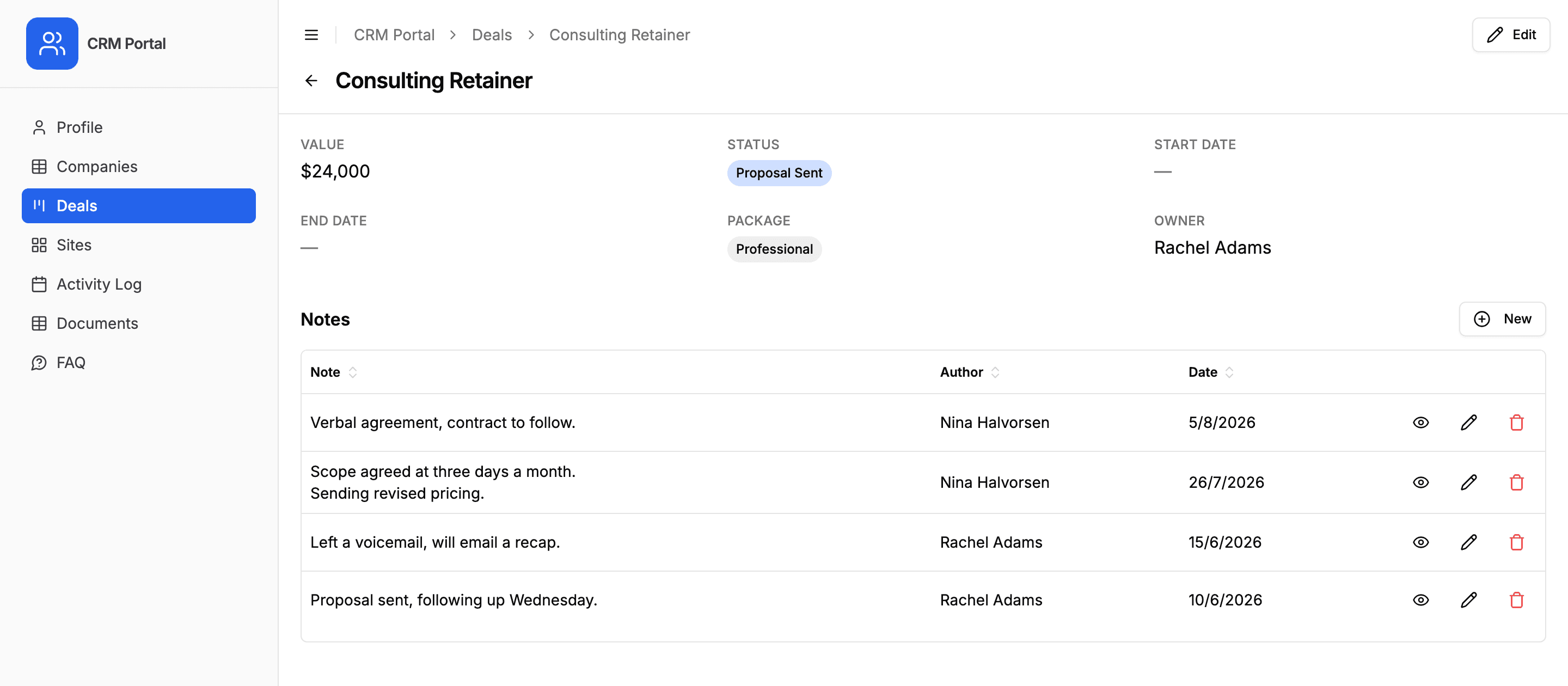
A record can mix the two. A company can show Deals as a tab and Notes on the page, or put several linked fields on the page one under another, in the order they appear in Airtable.
Both placements also apply on an end user's own profile page, so someone opening their profile sees the records linked to them the same way they would on any other record.
Reach for Under details when the children are the reason you opened the record, and for As a tab when they are one of several sets a user dips into. A page with several long tables under it gets tall, and each table scrolls within its own frame rather than growing without limit.
Create, Edit and Delete in the Tab
A related tab is not read-only. A New button in the tab adds a child record already linked to the parent, so a work order created from a property is attached to that property for you. If a role can only view work orders, the tab is view-only for them. If a field on the form is set to filter by another field and that other field is the one linking back to the parent, the parent counts as filled in, so that picker is ready as soon as the form opens.
Two limits are worth knowing:
- Creating needs a two-way link. The New button appears only when the link field has an inverse field on the child table, which is Airtable's default. On a one-way link there is nothing to write the parent into, so the tab lists records without offering to add one.
- Editing and deleting in place need the records to be a table. A gallery, kanban or calendar opens the record's own page instead, though dragging a card in a kanban or calendar still saves the change to the group or date field. An FAQ opens the answer where it is and offers no way through to the record at all, so it is for reading only.
Both apply to related records on the record page exactly as they do in a tab.
Tabs Are Shareable
Each related tab has its own URL. Open the Work Orders tab on a property and the address bar updates, so that exact tab can be bookmarked, reloaded, or sent to a colleague and it opens on the same tab. The active tab also shows in the breadcrumb, so a user always knows where they are in a nested record. Each tab change is a step in the browser's history, so the browser's back button steps back through the tabs you opened. The back arrow at the top of the record skips them and goes back to wherever you were before the record: the list you opened it from, or, for a record opened from another record's tab, that tab.
Surfacing a Table as a Page
Sometimes you want a linked table in the sidebar as its own page, not nested inside a parent. A table that links to your user table can be a page. A table with no direct link to the user table can be a page too.
Open the table's page in the portal admin, go to the Display tab, and switch on Show as a page in the sidebar. The table appears in the portal sidebar as a top-level page.
A table surfaced as a page with no link to the user table shows every record to every user who can view it. That is the right choice for shared reference tables (a Categories or Statuses list) but not for data that belongs to a specific person. When records belong to a parent, a related tab is the safer choice, since it only ever shows that parent's children. See setting up your Airtable base for how per-user scoping works.
When to Use Each
- As a tab: the child records belong to a parent and should be read in that context, alongside other sets of children. Work orders under a property, line items under an order, tasks under a project, deals under a company. Scoped automatically, no link to the user table needed.
- Under details: the child records are the main thing on the record, so they belong under its fields rather than behind a tab. Messages under a conversation, line items under an invoice.
- Top-level page with a direct user link: each user should see their own records across everything, in one place. A standalone Work Orders page where a contractor sees all their work orders across every property. The table needs its own link to the user table.
- Top-level page with no user link: a reference table everyone should see in full. Categories, statuses, a shared price list.
Use Cases
Parent and child data shows up across most portal types. It fits maintenance portals (work orders and visits under a property), project management portals (tasks under a project), CRM portals (deals, contacts and notes under a company), and client portals (deliverables under an engagement).
Next Steps
- Setting Up Your Airtable Base - How linked records and per-user scoping work
- Summary Fields and Record Detail - Choose what shows on the row versus the detail page
- View Types - Set the view a related tab inherits
- Table Permissions - Control access on the child table the tab reuses