FAQ View
Display a table as an accordion FAQ page. Pick the field holding the question and the field holding the answer, and choose whether the answers start open or closed.
Overview
The FAQ view displays a table as an accordion: one row per record, with the question as the heading and the answer in the panel that opens underneath.
Use it for the tables people read rather than work with. A help center, a policy list, an onboarding guide, a set of terms. Those tables have two columns that matter and one long one, and as a table row the long one is clipped after two lines, which is rarely far enough to reach the answer.
Configuring an FAQ View
- 1
Open the Display tab
In the portal admin, open the role, open the table's page, and switch to the Display tab.
- 2
Pick FAQ as the view type
Set the View type dropdown to FAQ. Three settings appear below it.
- 3
Pick the question field
The Question field dropdown becomes the heading a reader clicks to open each answer.
- 4
Pick the answer field
The Answer field dropdown becomes the panel underneath. Long text and rich text both keep their formatting here, so a multi-paragraph answer reads as one.
- 5
Choose how the page opens
Leave Start answers expanded unticked and the page opens as a list of questions, which is how most FAQ pages work. Tick it and every answer is open on load.
Which Fields Can Be Used
The two dropdowns offer different sets, because the two slots render differently.
The answer takes anything that holds text: single line text, long text, rich text, AI text, and any formula, rollup or lookup that resolves to one of those. It renders the same way the field would anywhere else in the portal, so rich text keeps its formatting.
The question is narrower: single line text and long text, plus a formula or rollup that resolves to one of those. It is a heading printed as plain text, so the types that are not plain text are left out rather than printed badly. Rich text would show its raw markdown, and a lookup or an AI text field holds a value that has no single line to print at all.
Two rules narrow that further:
- The field has to be visible to the role. A field set to Hidden in field permissions is not offered, and an FAQ built on a field that is hidden later stops using it rather than showing the value. Worth knowing if you run several roles: hide the answer field from one of them and every question on that role's FAQ opens onto "The answer field is not available to you."
- The answer cannot also be the question. Whichever field you pick as the question drops out of the answer list.
The FAQ option itself is disabled until the table has a field that can be the question and a different one that can be the answer, because an FAQ is both. Note the two lists differ, so a table can have plenty of answer-capable fields and still not offer FAQ, if none of them can serve as a question.
Starting Expanded or Collapsed
Start answers expanded decides how the page first renders and nothing else. A reader can open and close any answer either way, and more than one answer can be open at a time.
Collapsed is the better default for a long list: the reader scans the questions and opens the one they want. Expanded suits a short page, or one people are meant to read start to finish, and it makes the whole page searchable with the browser's own find.
What a Reader Sees
A list of questions, and the answer to whichever ones they open. The panel holds the answer field and nothing else, which is what keeps an FAQ page reading as an FAQ page rather than as a list of records.
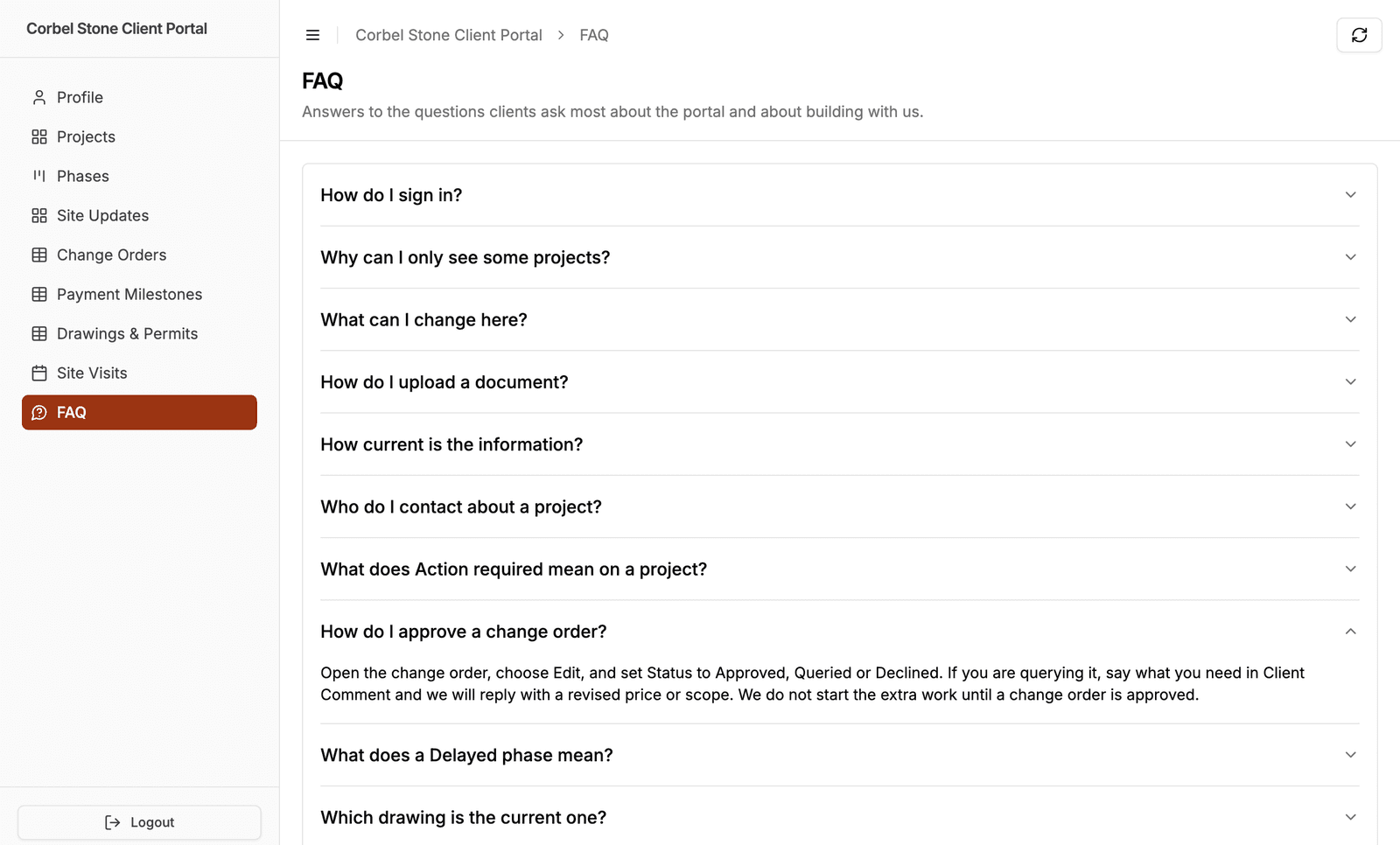
Two things a reader can see instead of an answer, and they mean different things. "No answer yet." means the answer field is set up and that record's cell is empty, which is something to go and fill in. "The answer field is not available to you." means the answer field itself is not usable for that reader: hidden from their role, retyped, or deleted in Airtable. The first is about one record, the second is about the setup, and it is the one to act on.
The second one is all or nothing: it depends on the field, not the record, so it is on every question or none of them.
The FAQ view loads the whole table at once rather than a page at a time, so a reader scanning for their question never has to page to find it. It stops at 500 records, the same cap the kanban and calendar views have, so filter a larger table down before pointing an FAQ at it.
Search and Filtering
Turning on filter and sort controls and picking the fields the search box should cover puts it above the questions, which is the control most FAQ pages want. The toggle alone is not enough: with no searchable fields picked, no box appears. Cover the question field and someone can type what they are looking for instead of reading the list.
Sorting is offered in those controls rather than on column headers, since an accordion has none.
Permissions
The FAQ view respects the usual permissions:
- A field set to Hidden in field permissions never appears as a question or an answer.
- Table permissions still decide whether a reader can add a record: the create button sits in the page header, the same as on any other view.
- Editing and deleting are not offered on an FAQ page. The panel holds the answer and nothing else, so there is no row to act on and no way through to the record. Give a role edit or delete permission on an FAQ table and it has no surface to use it on. Show the table as a table if people need to change records rather than read them.
- Record filtering and record ownership still apply, so a role can have its own set of questions.
Tips
- Write the question field as a question. It is the only thing on screen until someone clicks, so "How do I reset my password?" earns its row where "Password reset" does not.
- Use long text or rich text for the answer. Both keep their line breaks and formatting in the panel.
- Order the questions. Set a default sort so the most common questions sit at the top, rather than whatever order Airtable returns.
- One table per audience. The view type is per role, so the same table can be an FAQ for clients and a plain table for the team maintaining it.
Next Steps
- View Types - Compare the five layouts
- Field Permissions - Hide a field, and the four a layout shows anyway
- Default Sort - Control the order the questions appear in
- Filter & Sort Controls - Add a search box above the questions, once you pick the fields it covers
- Portal Labels - Change the words this table's pages use