Conditional Formatting
Highlight portal records that match a condition, in table rows, gallery and board cards and calendar events, so users can pick out the ones that need attention.
Overview
Conditional formatting tints a record in your portal when it matches a condition you set: its row in a table, or its card in a gallery, board or calendar. It works the way Airtable's own conditional formatting does: pick a colour, then say "where Status is Overdue".
It is there so a user can find the rows that need attention without reading every column. A table of fifty work orders where the three overdue ones are tinted red is a different table to scan than the same fifty rows in one colour.
Formatting is display only. It never changes which records someone can see, and it never changes their order. Everything about who sees what is on the Access tab, under table permissions and record filtering.
Setting Up a Rule
- 1
Open the table's Display tab
In the portal admin, open the role you want to configure, open the table's page, and switch to the Display tab. The "Conditional Formatting" section is there, below the view layout.
- 2
Add a rule
Click Add rule. You get a colour and one condition to fill in.
- 3
Pick a colour
Ten colours are offered, the same hues Airtable uses for select options. The row is painted in a soft, faded version of the colour you pick, paler than any shade in Airtable itself, so a whole table of highlighted rows stays easy on the eye. The text colour is chosen to stay readable against it, so a tinted row is legible whatever branding your portal carries.
- 4
Say what the rule matches
Each condition is a field, an operator and a value: "where Status is Overdue". The operators are Equals, Does not equal, Is empty, Is not empty and Contains, and which of them you get depends on the field's type. The last two operators take no value.
Add more conditions with Add condition, and choose whether the row has to match all of them or any of them.
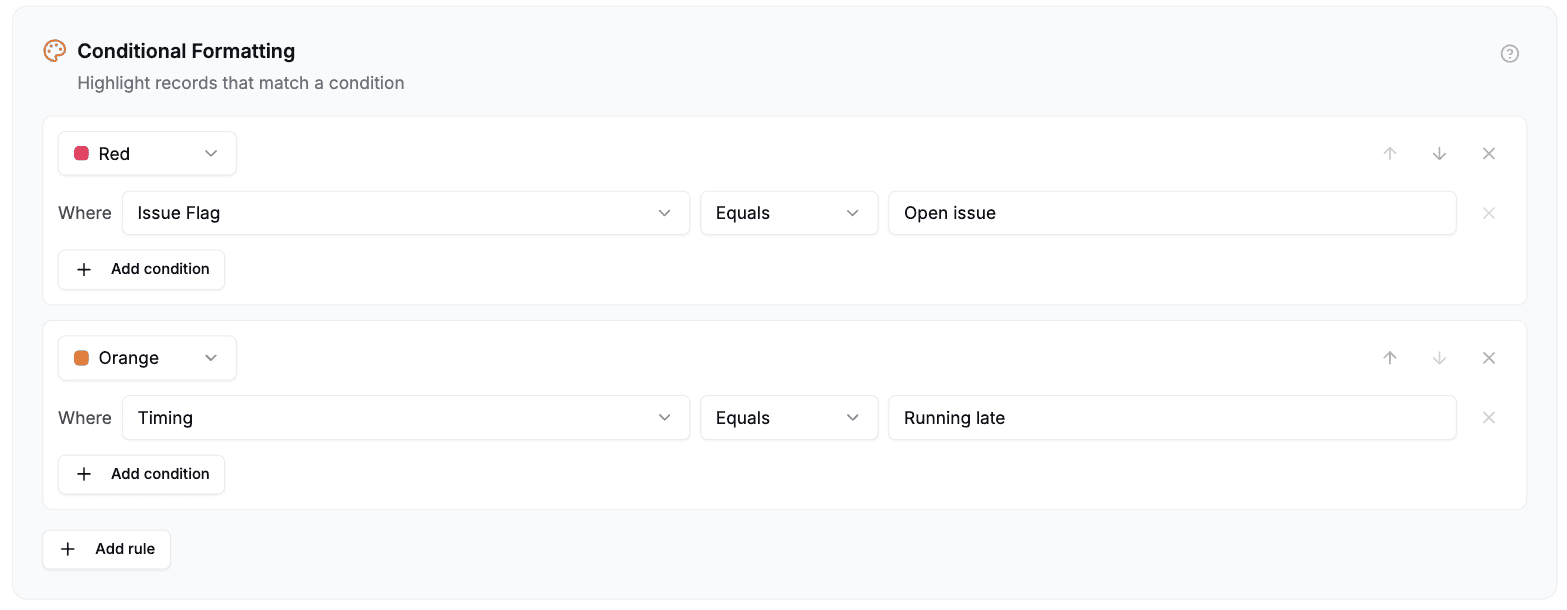
Two rules on an Orders page. Each has a colour and a condition, and the arrows on the right change their order.
Rules save with the rest of the portal configuration. The next time an end user loads the table, matching rows are tinted.
Rule Order Decides Overlaps
Rules apply in order, and the first one that matches paints the row. A record satisfying two rules takes the colour of the higher one.
That makes the order part of the rule rather than a preference, so use the arrows on each rule to move it. The usual shape is most urgent at the top: "overdue" above "due this week" above "in progress", so a record that is both overdue and due this week reads as overdue.
Which Fields You Can Use
Most fields can back a rule. Some cannot, and a field that cannot is simply not offered in the picker rather than offered and quietly ignored.
Out because the field holds something other than a value to compare: attachments, collaborators, buttons, barcodes, AI text, and the Created By and Last Modified By fields.
Linked record fields are out as well, for a different and less obvious reason. A linked cell holds the linked record's internal ID rather than its name, so a rule looking for "Ann Smith" would never match even though the column reads "Ann Smith" on screen. The workaround is a lookup of the field you want to match on: add a lookup of the linked record's name, and that lookup is formattable, because a lookup surfaces the linked record's value rather than its id. (Record filtering can match link fields directly, because it asks Airtable rather than matching in the browser.)
One exception on lookups: a lookup whose source field has been deleted in Airtable is not offered either, because we cannot tell what it used to hold. Fix the lookup in Airtable and it becomes available again.
A few field types are narrower than they look:
- Dates offer Is empty and Is not empty only. A date you type into a box cannot be reliably compared against the way Airtable stores the same date, so offering Equals here would give you a rule that quietly matched nothing.
- Checkboxes offer Equals, with Checked and Unchecked as the values.
- Multiple select and lookups: Contains matches one whole value rather than part of one. "Contains Chris" matches a record whose lookup holds Chris and does not match one holding only Christine.
- Numbers compare as numbers, so a rule looking for 1234.50 matches a cell holding 1234.5.
- Percentages are typed the way you read them: a rule looking for 50 matches a cell showing 50%, even though Airtable stores that as 0.5 behind the scenes.
- Durations are typed the way the field shows them too, so 3:00 for three hours. The value box shows the field's format as a hint. One detail worth knowing: on a field formatted as hours and minutes, a plain number is read as minutes, so 180 also means three hours. That matches how the portal's own forms read a duration.
- Lookups, formulas and rollups that show a percentage or a duration are the exception to both of those, for now. They match on the value Airtable stores rather than the one it displays, so type 0.5 for 50%, or 10800 (seconds) for three hours.
Text comparisons ignore case: a rule looking for "active" matches a cell reading "Active".
Permissions and Hidden Fields
A rule built on a field a role cannot see does not apply for that role. The rows render normally, with no tint.
This is deliberate rather than a limitation. If the rule still applied, an end user who cannot read your Status column could still see which rows were tinted, and "the tinted ones are the rejected ones" is one guess away. Hiding a column and then colour coding rows by it would give the column away.
The practical consequence: if you hide a field from a role after building a rule on it, that role stops seeing the highlight. Nothing breaks and nothing warns you, so if a highlight has stopped appearing for one role, check that role's field permissions first.
Where It Applies
Every view that shows your records as rows or cards:
- Table view, including a grouped table, where the whole row is tinted.
- Gallery view, where each matching card is tinted.
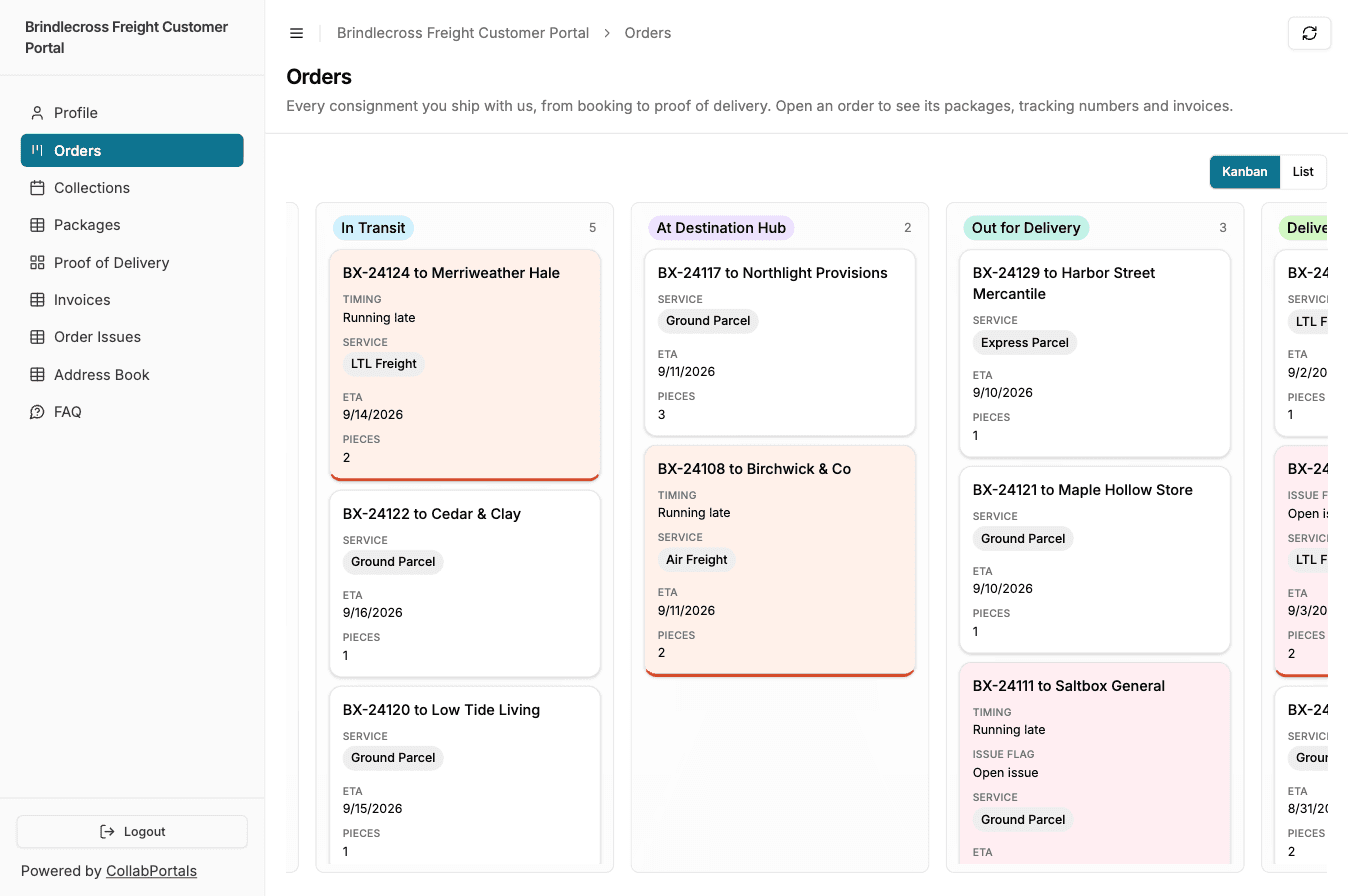
- Board (kanban) view, where each matching card is tinted, in its board and its list mode alike. A card keeps its colour while you drag it to another column.
- Calendar view, where each matching event is tinted, in both the month or week grid and the list mode.
- A table shown as a related tab on another record's page, using that table's own rules.
A tinted card gets a marker along its bottom edge, where a tinted row has one down its left edge, plus the same screen-reader description. Both are described under Accessibility below.
The FAQ view is the one exception. An FAQ is a list of questions and answers rather than a set of record tiles, so rules on a table set to FAQ are kept but not shown.
Rules are per role, like the rest of a table's configuration. A staff role and a client role looking at the same table can be given different highlights, or the client role none at all.
Accessibility
A tinted row also carries a marker down its left edge (a tinted card, along its bottom edge) and a description a screen reader announces, naming the rule that matched ("Status is Completed"). Colour on its own is not something every user can see, so the highlight says what it means in two other ways as well.
That is worth knowing when you choose colours: the tint is a convenience for users who can see it, not the only signal, so you do not need to pick colours that carry meaning on their own.
Removing a Rule
Click the cross on the rule. Removing every rule turns formatting off for that table.
Tips
- Highlight the exception, not the norm. A rule matching most rows makes the table harder to read, not easier. Tint the five overdue records, not the forty-five on track.
- Two or three rules is usually enough. Ten colours are available and a table wearing all ten conveys nothing.
- Pair with a filter. Highlighting says "look at this"; record filtering says "you may not see that". If a user should never see a record, filter it rather than colouring it.
- The hues match Airtable's. A colour you use for a select option in your base is the same hue here, only softer, so a portal can echo the colour coding your team already uses in Airtable.
Next Steps
- Viewing Records - How the table view renders for end users
- Filter and Sort Controls - Let end users narrow the table themselves
- Field Permissions - What decides whether a rule's field is visible