Activity Log: See What Your Portal Users Did
The Activity page lists what the users of your portals did: records created, edited and deleted, exports, sign-ins, sign-outs and role switches. Filter by portal, user, table, record and date, with charts of actions over time.
What It Does
The Activity page lists what the users of your portals did and when: every record they created, edited or deleted, every export, every sign-in and sign-out, and every role switch. It covers all of your portals in one place, and you can narrow it to one portal, one user, one table or one record.
It answers questions like "who deleted this record", "did this client ever sign in" and "how many sign-ins did we get across our portals last month".
Open it from the dashboard sidebar, under More, then Activity.
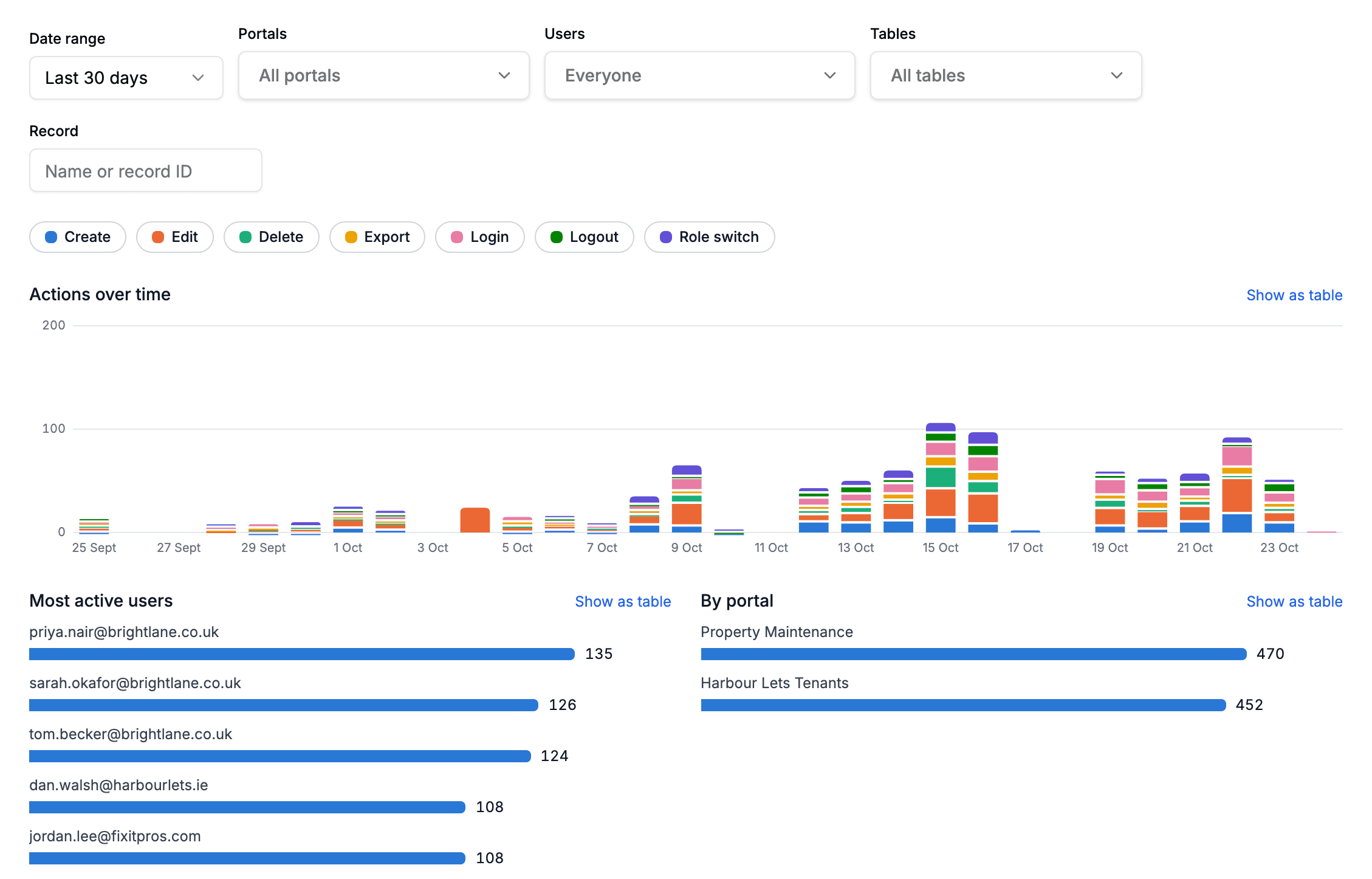
What Gets Logged
| Action | Logged when | Details shown |
|---|---|---|
| Create | A user creates a record | The record and its table |
| Edit | A user saves a record | The names of the fields that changed (for a bulk edit, the field it set), never the old or new values |
| Delete | A user deletes a record | The record's name and table |
| Export | A user downloads a page as CSV or Excel | The format, the number of rows, and the names of any fields they filtered or sorted on |
| Login | A user signs in | Whether they used a code or email only, and whether it was a new sign-up |
| Logout | A user signs out | |
| Role switch | A user switches role | The role they switched from and to |
Every entry also has the time, the portal, the user's email and their IP address.
A bulk edit or bulk delete logs one entry per record, each marked Bulk, so you can still find a single record in it.
Only what happens through a portal is logged. Changes made directly in Airtable, by automations or through the Airtable API are not, and neither is simply viewing a record. Your own previews of a portal, and visits through a demo login, are left out too.
Filtering the Log
- 1
Pick a date range
Choose the last 7, 30 or 90 days, or Custom for any range up to a year. Times are shown in your browser's time zone.
- 2
Narrow it down
Portals, Users and Tables each take several choices. The Users menu lists your 50 most active users and searches the rest as you type, so it works with hundreds of users. Record finds a record by its ID, or by any part of its name.
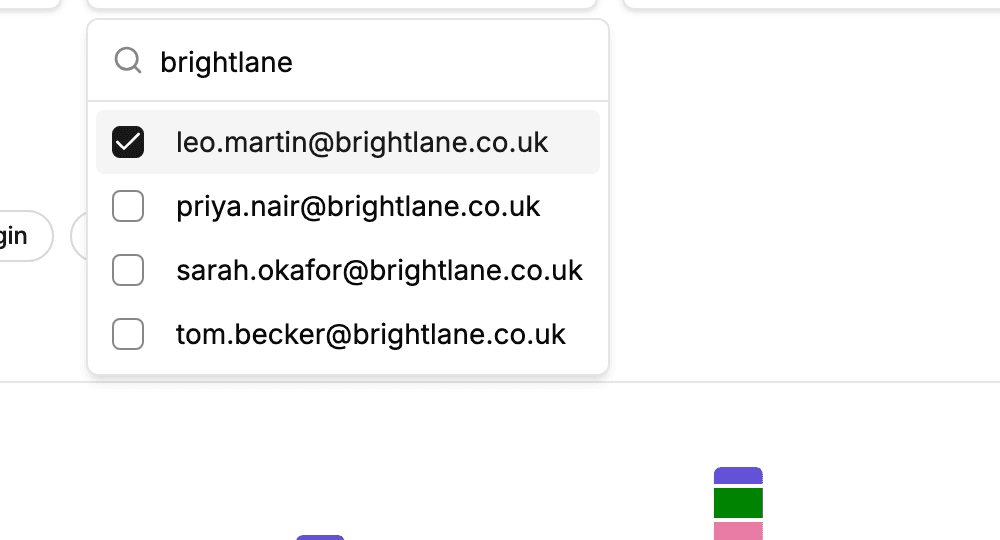
Search for a user and tick as many as you need. - 3
Toggle action types
The row of action buttons under the filters switches each type of action on or off. The charts and the list follow it together, so switching off everything but Login shows sign-ins over time and who signed in most.
The Charts
- Actions over time stacks each day's actions by type. Ranges longer than 60 days are shown by week.
- Most active users ranks the users with the most actions in the range.
- By portal compares your portals, and is hidden once you filter to a single portal.
Each chart has Show as table for the exact numbers.
The List
Under the charts is every matching entry, newest first, 50 at a time. Load more fetches the next 50.
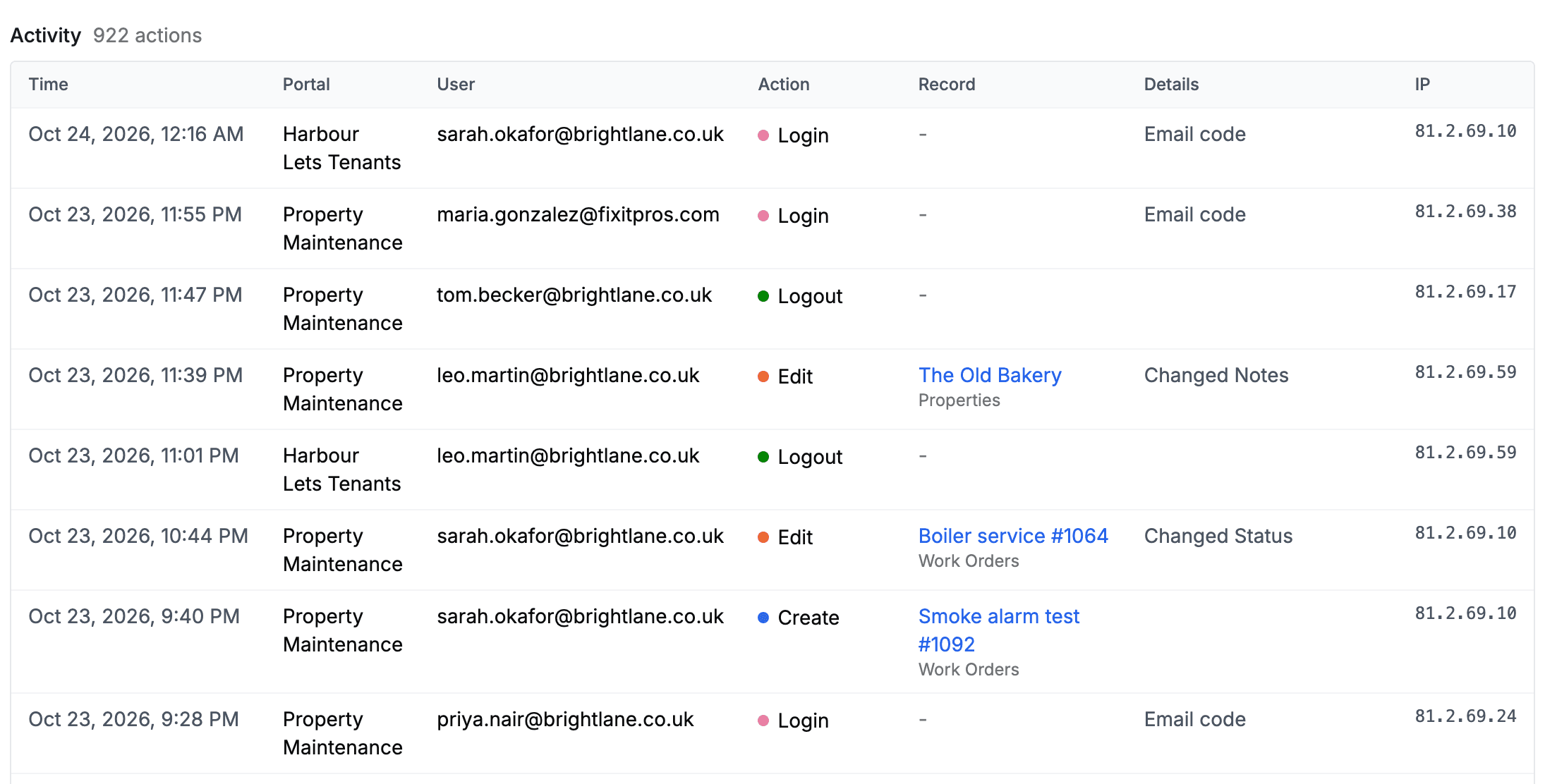
A record's name links to it in Airtable, so you can see its current values and Airtable's own revision history. Deleted records are not linked, since they no longer exist.
Who Can See It
You see the activity of every portal you can manage in the dashboard: the portals you created, the ones shared with you, and, if you own a team, every portal in it. Your portal users never see the log.
How Long Entries Are Kept
Entries are kept for 12 months, then deleted automatically. The log keeps your users' emails and IP addresses, so if your portal is used by people in the EU or the UK, mention it in your own privacy notice. Our privacy policy describes what we record on your behalf.
Next Steps
- Portal User Authentication - How your users sign in, and what a new sign-up is
- Role-Based Access - Set up the roles users switch between
- Exporting Records - Let users download a page as CSV or Excel