Making a Portal Public
Let anyone with the link browse your portal without signing in: what visitors can and cannot see, how signing in and signing up work on a public portal, search engines, and how public pages keep Airtable requests down.
Overview
By default nobody sees anything in a portal until they sign in. Make this portal public changes that: anyone with the link can browse the portal without signing in. Use it for a directory, a catalog, a job board, property listings, or anything else you want people to find.
Visitors can look but not change anything. They see what your default role sees, with these limits:
- Only tables set to show all records. A table that shows people only their own records stays private, because a visitor has no records of their own.
- Never your user table. Visitors cannot open the list of your users, even if signed-in users can see each other.
- No embed pages. A page that frames another site is for signed-in users only.
Turning It On
- 1
Open the Login tab
Open the portal in the editor and go to the Login tab.
- 2
Switch on Make this portal public
Switch on Make this portal public. Below the switch, the setting lists exactly which tables will be public and which stay private, and names each field visitors will be sent that shows data from a table they cannot open.
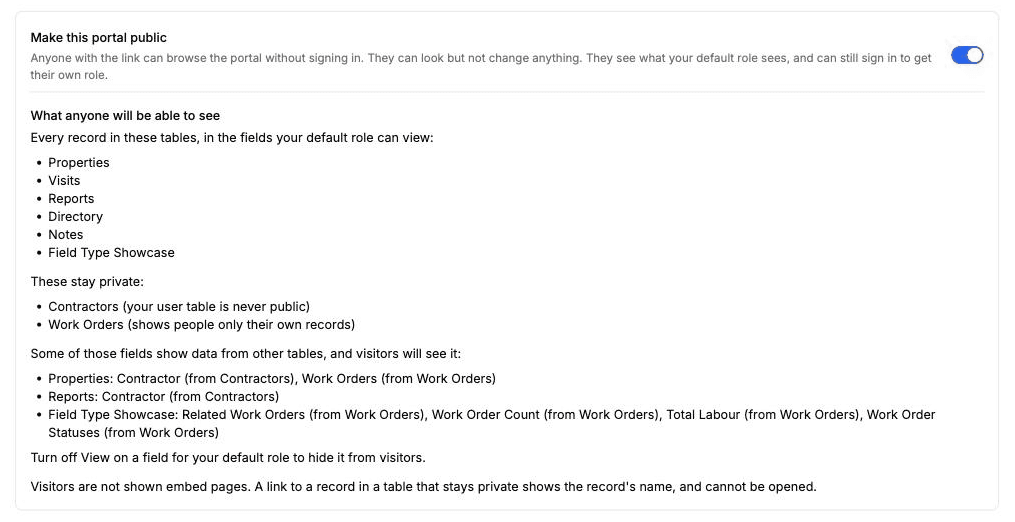
Before you save: what visitors will see, what stays private, and which fields borrow data from a private table. - 3
Check both lists, then save
Read both lists before you press Save. If a table or field is on the public list and should not be, change it first: switch off View on that field for your default role, or set the table to show people only their own records. The lists update as you change settings.
- 4
Open the link signed out
Open the portal in a private browser window to see it as a visitor does.
Making a portal public publishes every record in the listed tables, in the fields your default role can view. Check both lists before you turn it on.
Fields That Show Data From Other Tables
On a public table, visitors see every field your default role can view. That includes fields Airtable fills in from somewhere else: a lookup, a rollup, a formula, a button, or a link to a record in another table. If a public Jobs table has a lookup of each owner's country from your user table and your default role can view it, visitors see the country.
A link to a record in a table that stays private shows that record's name. Visitors cannot open it.
Lookups, rollups, and formulas are viewable from the day you create a portal, so a field like "Owner email" can be on without you having chosen it. Before you save, the setting names each field visitors will be sent that shows data from a table they cannot open. To keep one of them to signed-in users, turn off View on that field for your default role, and give signed-in users a role that can see it. Two kinds of field are sent whatever View says, and the list marks them: the field a table uses as its record name, and the field a gallery, kanban, or calendar page is laid out by. Change the record name or the page's layout to hide those.
Visitors cannot filter by a link field when the linked table uses a record name other than its primary field. Airtable filters a link by the linked record's primary field, so the filter would show that value to visitors.
Signing In on a Public Portal
If your portal has roles, visitors see a Sign in button at the bottom of the sidebar. Signing in gives a person their own role, with whatever it lets them see and edit. If you have also turned on self-registration, a Sign up button sits next to it, so a visitor without an account can create one.
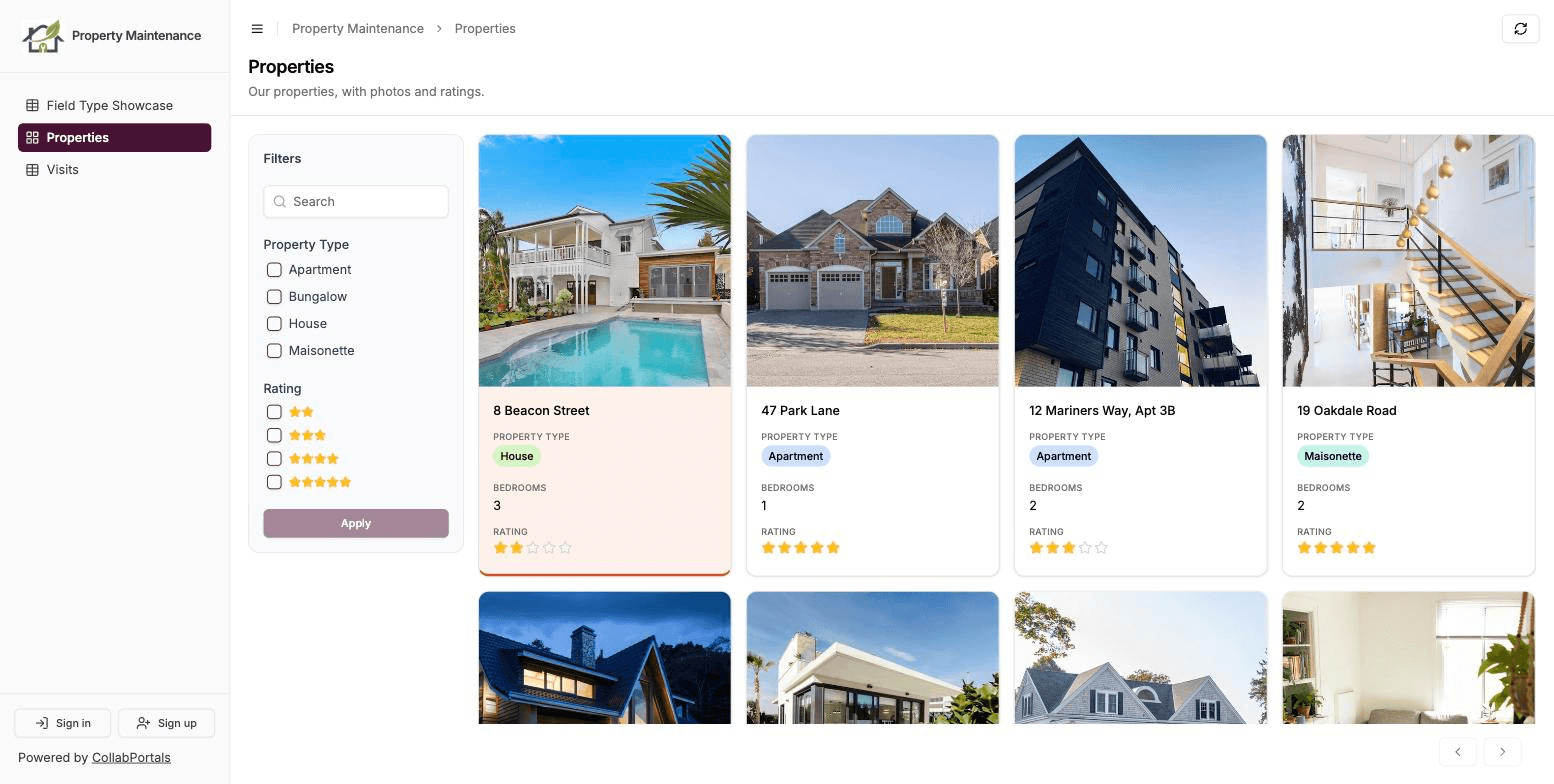
That is what lets one portal serve two audiences: the public browses, and the people who need more sign in for it. A job board can show every open role to visitors and let applicants sign up to apply.
If your portal has no roles, making it public removes the sign-in. Nobody can add, edit, or delete records from the portal, and tables that show people only their own records cannot be reached. Add a role if you want both a public view and a sign-in.
Search Engines
A public portal can appear in Google and other search engines, records included. That is on by default, because being found is usually the point. It uses more of your Airtable API requests, because search engine bots crawl your pages to list them. Switch off Let search engines list this portal if you only want to share the link yourself. Search engines can take weeks to drop pages they have already listed.
To hand your pages to a search engine directly, your portal has a sitemap at /your-portal-slug/portal-sitemap.xml, or /portal-sitemap.xml on a custom domain.
Keeping Airtable Requests Down
Every signed-in page view reads live from Airtable. Public pages work differently: visitors see a saved copy of your data, refreshed every 5 minutes, so a busy public page uses far fewer of your Airtable API requests.
Refresh public pages every sets how long that copy is kept: 1, 5, 15 or 60 minutes. A longer time uses fewer Airtable requests, and changes you make in Airtable take up to that long to show. A table view with more than 100 records is read live as visitors page through it; grouped tables, kanban, calendar, and FAQ views are saved whole. If you have just edited something and want it live, Refresh now updates the public pages straight away.
People who are signed in always see live data.
Next Steps
- Sharing Your Portal - Share the link and choose how people sign in
- Portal User Authentication - Self-registration and the Sign up button
- Portal Tracking - Count visits and sign-ups in Google Ads or Analytics
- Custom Domains - Put a public portal on your own domain