Let Portal Users Filter, Search and Sort Your Data
Portal users can now filter, search and sort a table themselves, so they find the record they need without you building a view for every case. Here is how it works and how to turn it on.

The people using your portal can now filter, search and sort a table themselves. They get a search box, filters for the fields you choose, and a way to sort, so they can find the record they need without you building a separate view for every case.
This matters most once a role can see a lot of records. A directory of hundreds of contractors, a board of every open job, an inventory list: all hard to use until the person looking at it can narrow it down. The controls give them that, and they only ever narrow what the role is already allowed to see.
What Your Users Get
Turn the controls on for a table and your users see:
- A search box that scans the text fields you pick.
- A filter per field you choose. Fields with a fixed set of values (single select, multiple select, rating, linked records) get a list of the values on that table, and number fields get a min and max box.
- Sorting on the fields you allow.
The same controls render to fit each layout. By default, in gallery view they sit in a panel down the left, and in table view they sit in a toolbar across the top; you can switch either one over. On a phone, both collapse to a single Filters button.
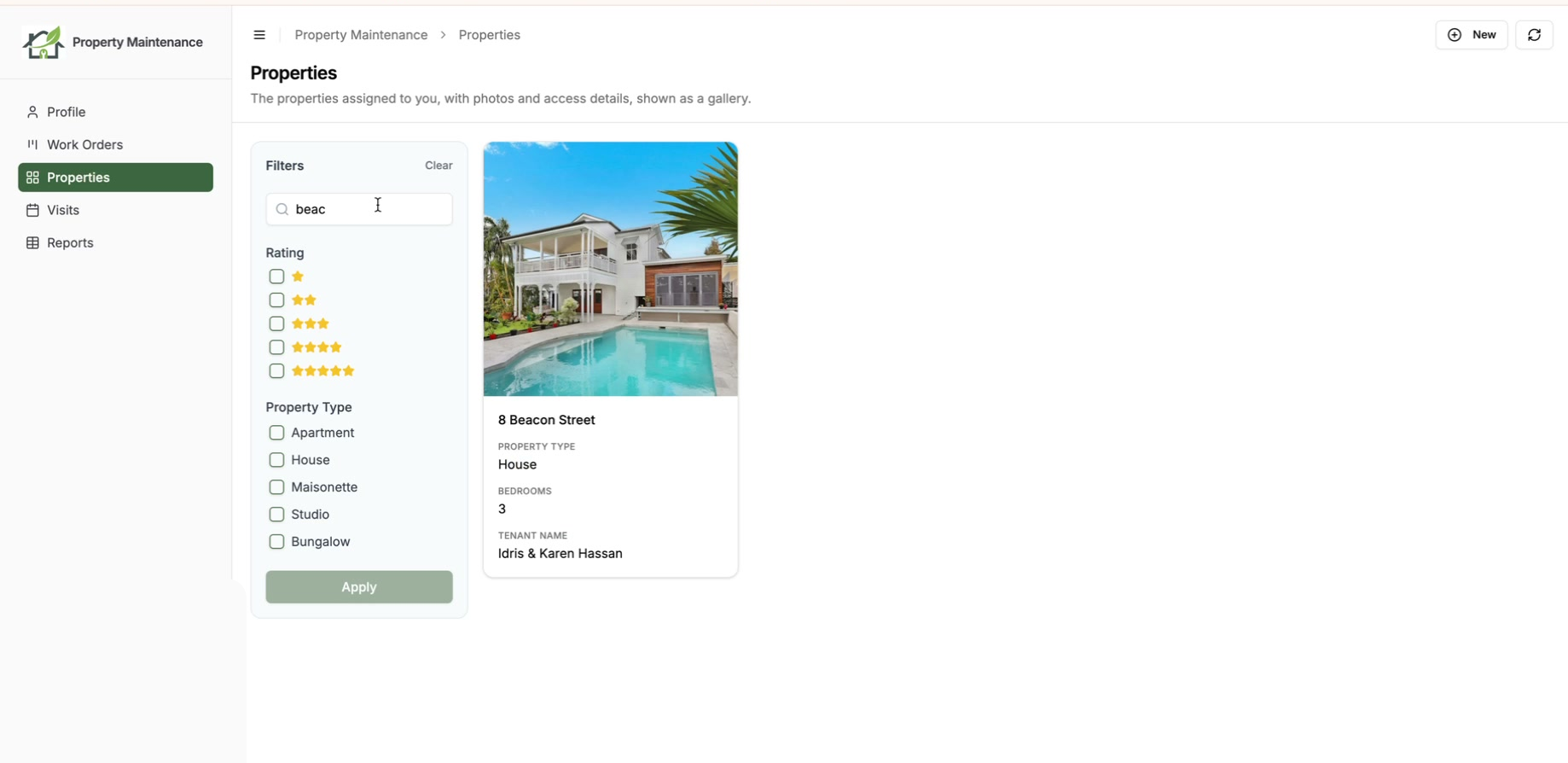
Filters are staged as the user picks them and only run when they press Apply, so a half-built filter never fires off a query. The current filters live in the page URL too, so a useful filtered view can be bookmarked or shared with a colleague.
See It in Action
A two-minute walkthrough: what the controls look like for your users in both views, then how to turn them on and choose the fields.
How to Turn It On
It takes a few seconds in the admin.
- 1
Open the Display tab
Open the table you want, go to the Display tab, and scroll to the Filter & Sort Controls card. Turn on Enable filter, search and sort.
- 2
Choose the fields
Pick which fields are filterable, which are sortable, and which the search box looks through. You are choosing what the controls offer, not changing what the role can see.
- 3
Save
Save the portal. The controls appear on that table's pages straight away.
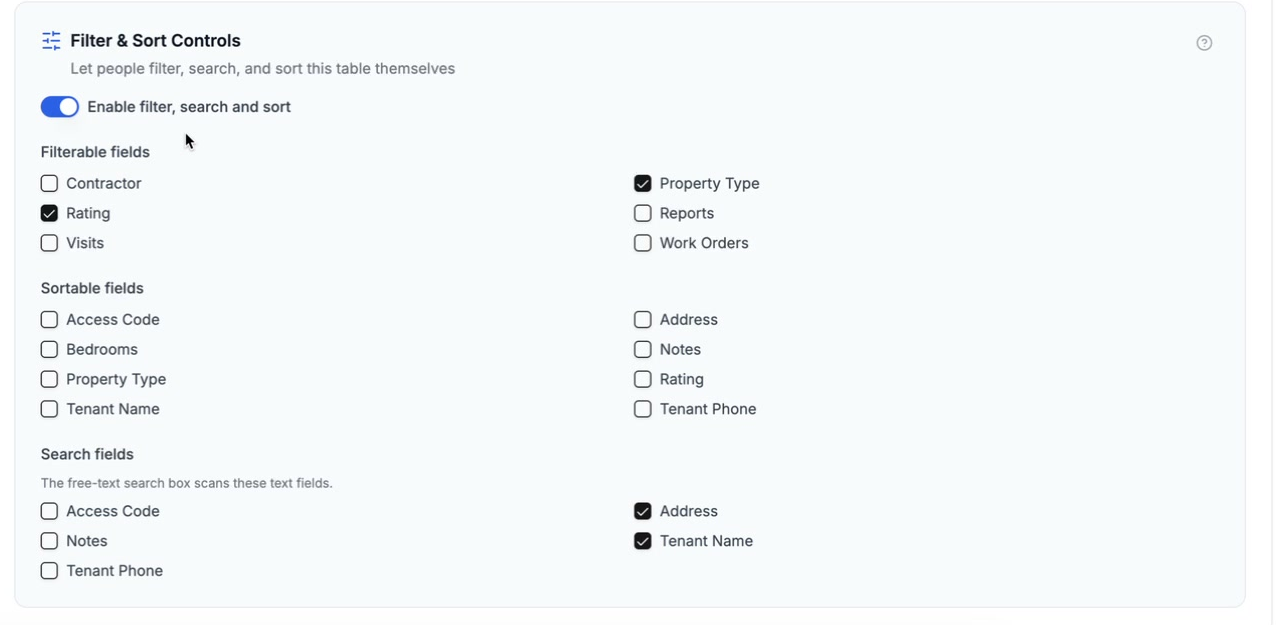
The controls are configured per table and per role, so a manager and a contractor can be given different things to filter and search on in the same portal. Filtering and sorting run server-side, so they stay correct across every page of a large table. Full setup detail is in the filter and sort controls docs.
Who This Helps
Any portal where a role sees a lot of records benefits, especially:
- Real estate and property portals: let clients filter listings by type, rating or status.
- Inventory and stock portals: search a parts list and filter by category.
- Contractor and compliance portals: find a contractor in a long directory by name or trade.
- CRM portals: filter accounts by stage or owner.
- Membership directories: let members search and filter each other.
It pairs naturally with the admin-side record filter and with roles: set the hard boundary of what a role can see with those, then hand the user the controls to explore within it.
How It Compares
A lot of portal tools either give end users no way to filter at all, or only do it by handing you Airtable's own interface. Airtable Interface Designer has filtering, but every user who touches the data needs a paid Airtable seat. App builders like Softr, Stacker and Noloco include search and filtering as part of a broader, pricier platform.
CollabPortals gives you per-table, per-role filter, search and sort controls, with portal users signing in by email code rather than an Airtable seat. You choose exactly which fields each role can filter and search, and the controls can never widen what that role is allowed to see.
Get Started
Filter, search and sort controls are available now on all plans. Open a table in your portal admin, go to the Display tab, and turn them on. New to CollabPortals? Start with the getting started guide.

About the author
Matt Shepherd
Founder, CollabPortals
Matt is the founder of CollabPortals. A software engineer and Airtable power user who kept running into the same frustration: no easy way to give external users a simple and secure view to edit their data. He built CollabPortals as the lightweight solution to that problem, allowing you to set up a secure, permissioned portal in a few clicks.
Related reading
Real Estate
Give clients and agents a branded portal to track property listings, transactions, and documents, all powered by your existing Airtable base.
Use caseInventory Management
Give warehouse staff, location managers, and external partners controlled access to your Airtable inventory base. Counts, reorders, and vendor pricing without exposing costs or other locations.
Use caseContractor Compliance
Give contractors and vendors a self-service portal to upload and renew their insurance, license, and tax documents, with expiry tracking, all powered by your Airtable base.
Use caseCRM
Give your clients a branded portal to view their account data, deals, contacts, sites, activity, directly from your Airtable CRM. No extra seats, no code.