Build an Airtable Application Portal
Run grant, scholarship and program applications in Airtable. Applicants track status and upload what is missing; reviewers score only their assignments.

See it working, then start from a ready-made Airtable base.
See a live demoCopy the Airtable templateThe Problem: The Form Is the Easy Part
Plenty of foundations, schools, clubs and programs already run applications in Airtable. A form collects the application, a table holds it, and a few views sort it by round and stage. Grants, scholarships, program admissions, vendor and creator applications, club trials: the base looks much the same each time.
The trouble starts after the form is submitted, because people need to come back. Applicants want to know where their application has got to, and half of them still owe you a budget or a reference letter. Reviewers need to read the applications assigned to them, open the documents, and score each one without seeing anyone else's marks.
You end up doing one of these:
- Answering status emails by hand and chasing missing documents one inbox thread at a time, then saving the attachments back into Airtable yourself.
- Adding reviewers as Airtable collaborators, where every reviewer can see every application, every other reviewer's scores and your decision notes, and each one costs a seat.
- Sending reviewers exported spreadsheets and PDF packets, then retyping their scores into Airtable when they come back.
- Buying grant management software on an annual contract, then moving your data and your workflow out of the Airtable base you built.
How CollabPortals Works for Application Portals
CollabPortals connects to your Airtable base and gives each group a branded portal. People sign in with their email, see only the records that belong to them, and edit only the fields you allow. Your internal notes, other people's scores and anything about a conflict of interest stay in Airtable.
An application process has two audiences, and one base can serve both. Reviewers get a portal that shows the applications assigned to them and lets them score. Applicants can get a second portal on the same base that shows their own applications, their stage, and the documents still to send.
Example: Community Foundation Review Panel
The live demo is a regional community foundation that runs grant rounds, microgrants and a scholarship. You sign in as John, a volunteer panel reviewer who sits on most of the foundation's panels, so more than fifty applications are assigned to him across the rounds he reads for.
| Table | Reviewer Access | Purpose |
|---|---|---|
| Applications | View | Every application assigned to the reviewer, as a kanban by stage, with its scores and documents on the application page |
| Scores | View, create, edit | One score per application stage, rated on four criteria, with a recommendation and comments |
| Documents | View | Budgets, letters of support, transcripts and portfolios, with the ones still owed marked Requested |
| Panel Sessions | View | Calibration sessions, interviews, site visits and panel meetings on a calendar |
| Funding Rounds | View | Each round's dates, budget and guidelines PDF, as a gallery |
| Reviewers | View, edit own profile | The reviewer's own record, including an upload for the signed confidentiality agreement |
| FAQ | View | How scoring, interviews and conflicts work |
| Applicants | Hidden | Applicant contact details stay with the grants team |
The grants team works in Airtable with the full picture: every score from every reviewer, the panel average, decision notes and declared conflicts. Each reviewer sees their own assignments and their own scores.
Build an Application Portal Step by Step
Here is how the live demo above is put together. The whole thing takes about an hour the first time, and there is no code involved.
- 1
Set up your Airtable base
Start with one table per thing you track: Funding Rounds, Applications, Scores, Documents and Panel Sessions, plus a Reviewers table for your panel and an Applicants table for the people who apply. Reviewers is the user table. Each application links to its round, its applicant and the reviewers assigned to it, and every score, document and session links back to its application. That chain is what lets a reviewer open an application and find its scores and files already on the page.
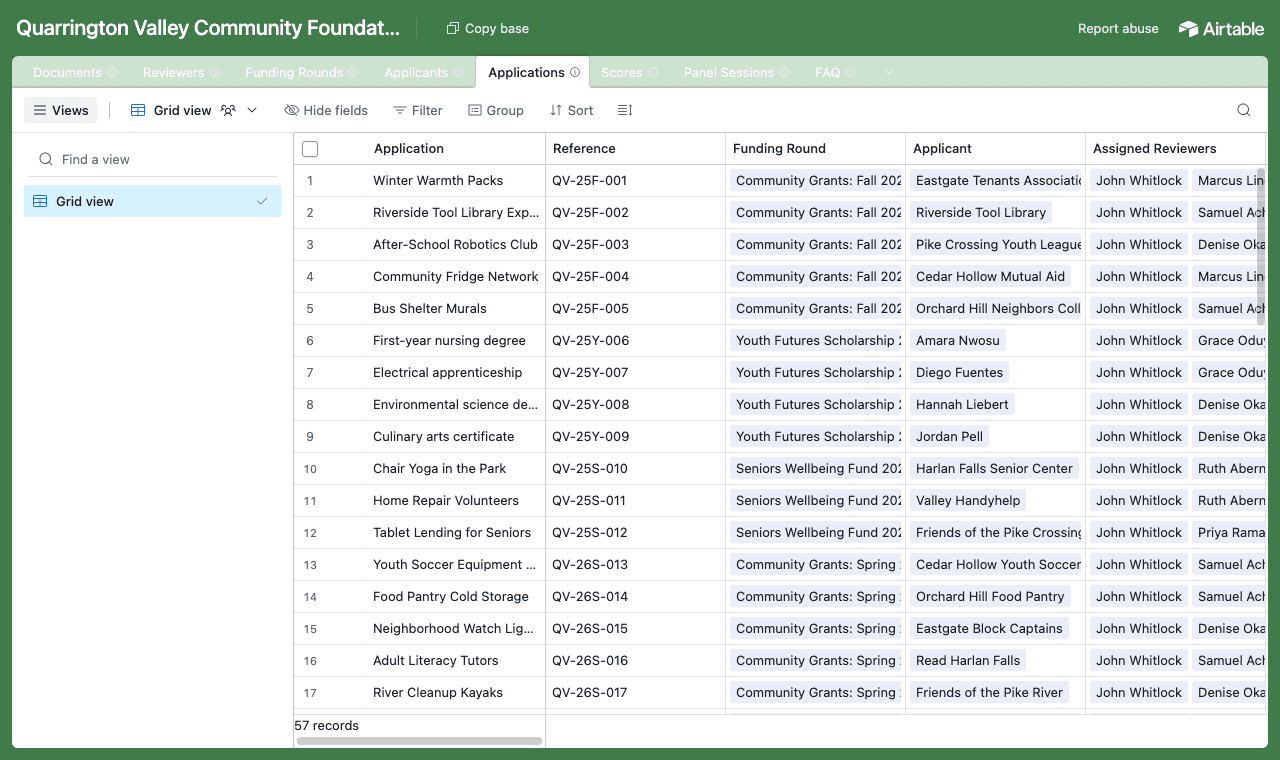
One table per thing, with applications at the center and scores, documents and sessions linked to each one. - 2
Connect the base and pick the reviewer table
Point CollabPortals at the base, then choose Reviewers as the user table and Email as the login field. Each reviewer signs in with the email on their record and sees the applications whose Assigned Reviewers field includes them. Documents do not need a reviewer link of their own: the portal follows a lookup of the application's assigned reviewers, so a document is visible to exactly the people reviewing its application.
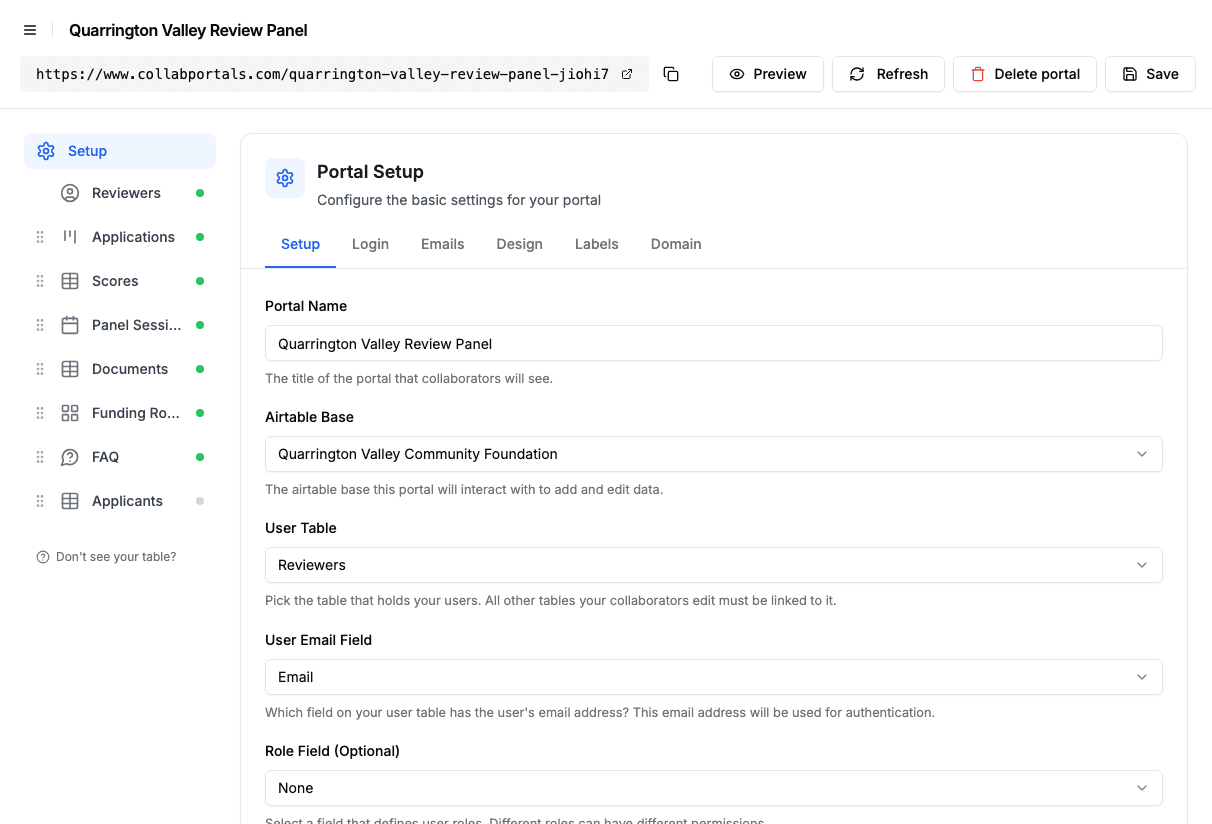
Connect the base, then point CollabPortals at the Reviewers table and its email field. - 3
Hide decision notes and other reviewers' work
On each table you toggle fields on or off. On Applications, reviewers see the applicant name, summary, stage, amount requested and round, while Internal Decision Notes, Conflict of Interest Notes and Panel Average stay hidden, along with the list of who else is assigned. Applications are view only. On Scores, reviewers can create and edit but not delete, and each score is saved against the reviewer who wrote it, so nobody sees anyone else's.
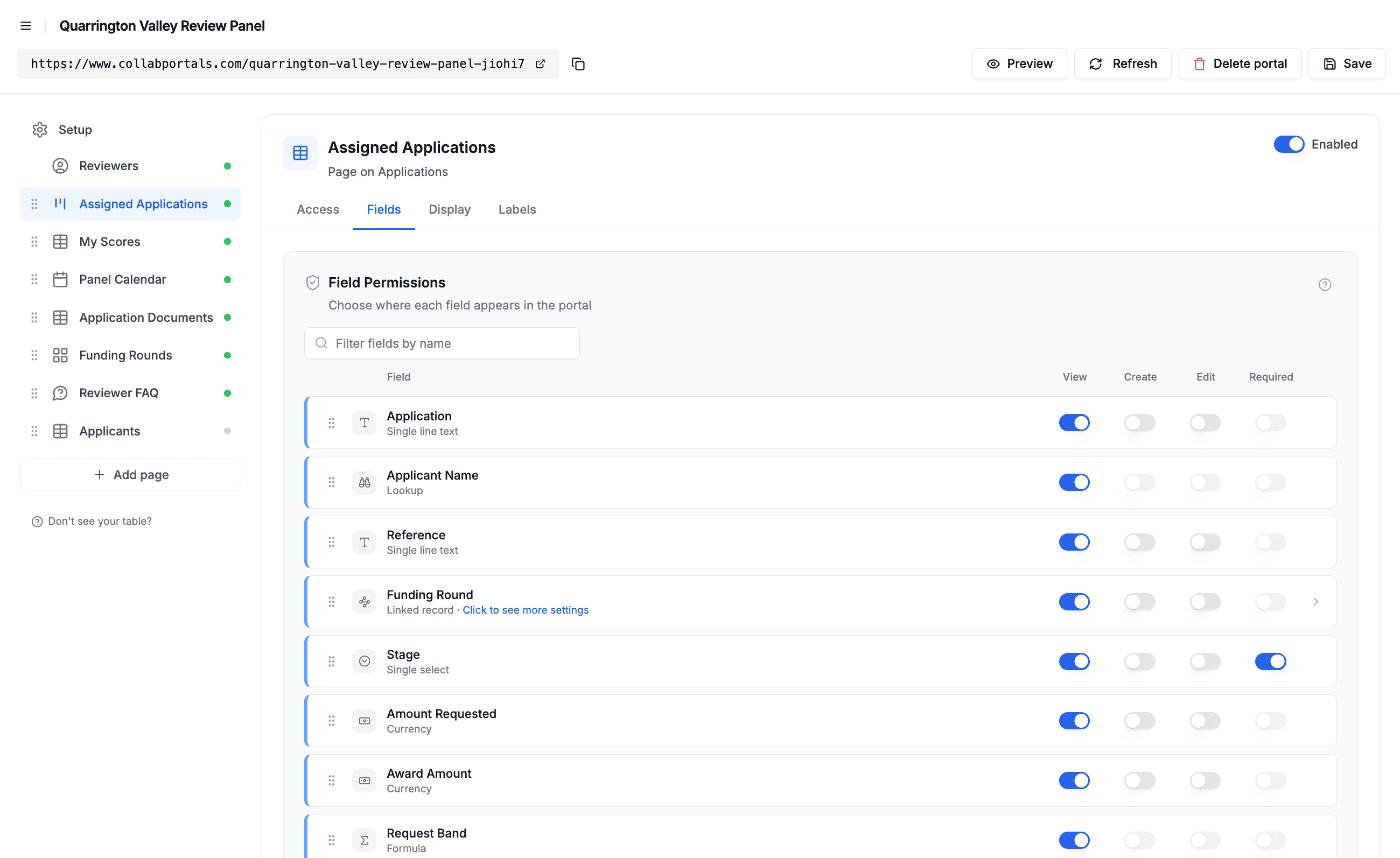
Field-level permissions: show the application, hide the grants team's notes and every other reviewer's marks. - 4
Give each table the view that fits
Pick how each table is shown. Applications as a kanban by stage, from Awaiting Documents to Awarded. Funding Rounds as a gallery with a cover for each round. Scores as a table grouped by round. Panel Sessions as a calendar. Conditional formatting picks out what matters: large requests in purple, top and low scores in green and red, and documents still owed in yellow.
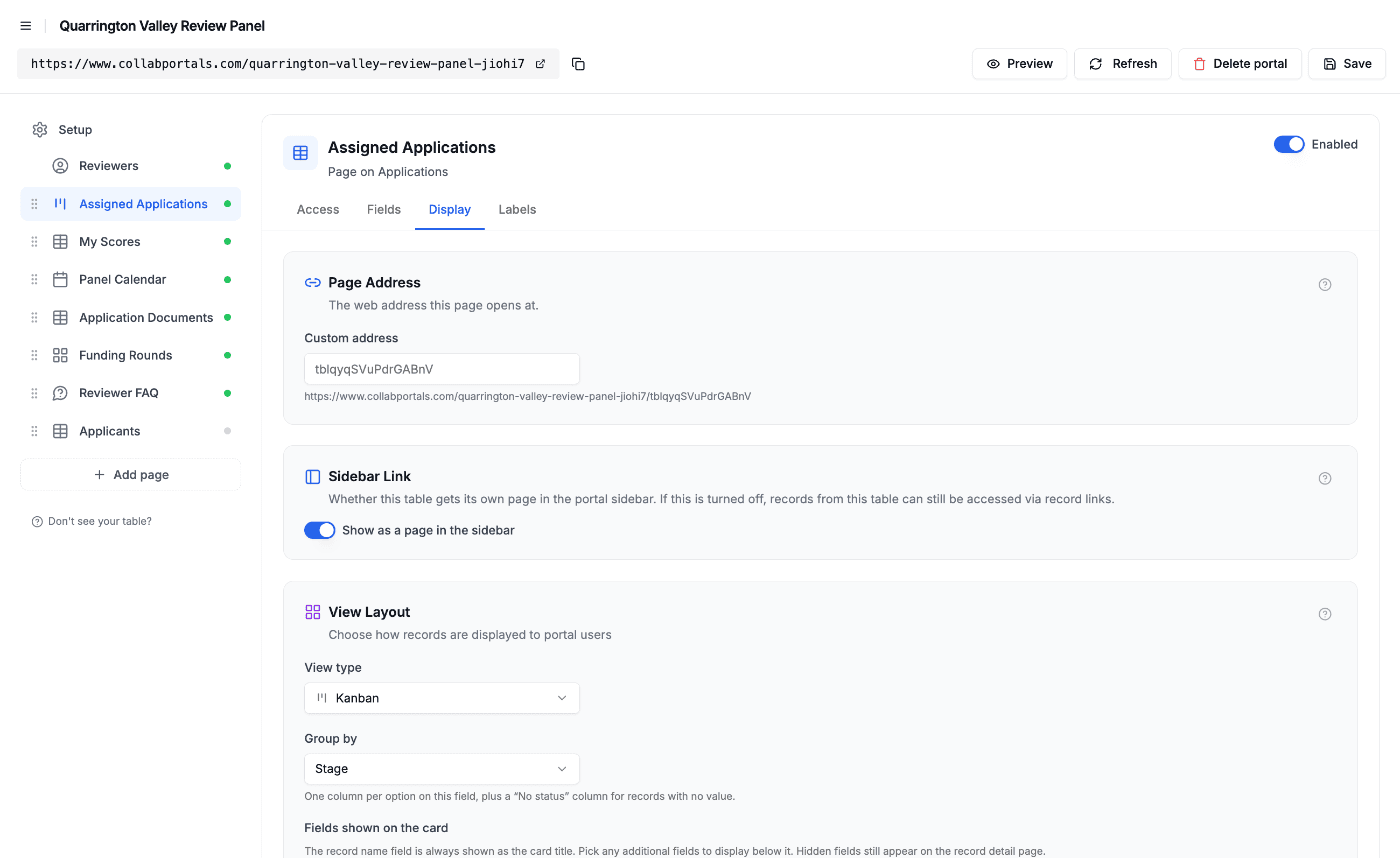
The Display tab turns each table into a kanban, gallery, table or calendar. - 5
Reviewers get a clean, branded app
The result is a portal in your colors. A reviewer opens an application and finds everything in one place: the summary, their own score, and the budget and letters as PDFs they can preview without downloading. Adding a score takes a few clicks, with star ratings for each criterion, and it writes straight back to your Airtable base.
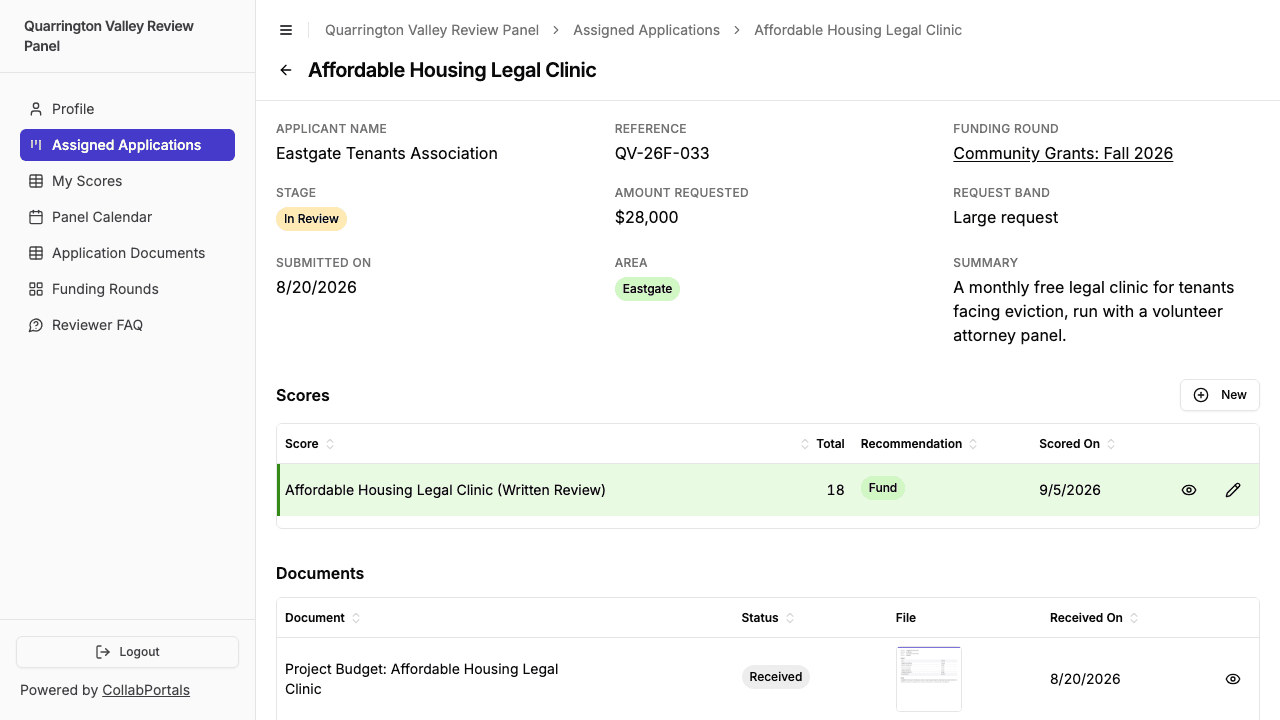
One application as a reviewer sees it: the details, their score, and the documents that came with it. - 6
They log in with just their email
Share the link. Each reviewer signs in with the email on their record and a one-time code, so there are no passwords to manage and no Airtable seats to buy. For a public example you can flip on a one-click demo user instead.
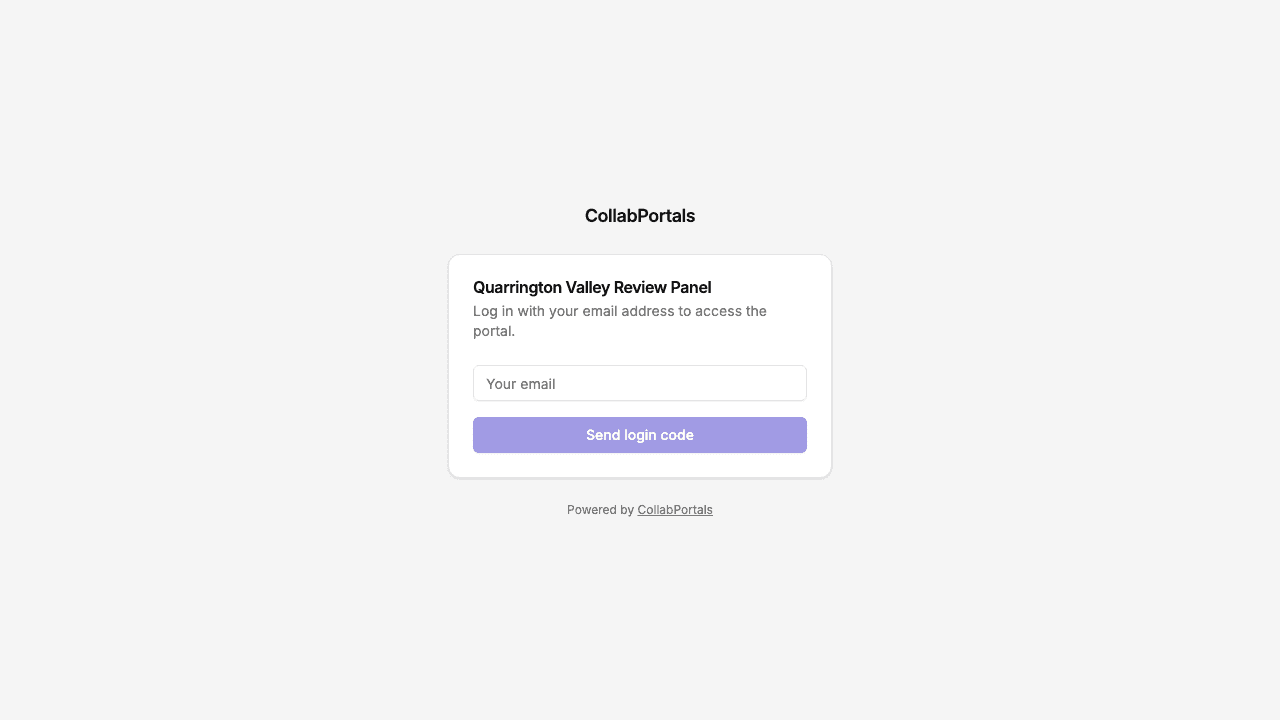
Email and one-time code login, branded with the foundation's name and color.
Want to start from this exact setup? Open the live demo or copy the Airtable template and connect it to your own base in minutes.
Use Cases for Application Portals
Community Foundation and Council Grants
Run grant rounds with a volunteer panel. Applicants follow their application from submission to decision; reviewers read and score only what is assigned to them.
- Applications (view), summary, amount requested, stage, round
- Scores (create, edit), criteria ratings, recommendation, comments
- Documents (view), budget, letters of support, financial statements
- Panel Sessions (view), calibration, site visits, decision meetings
- Hidden: decision notes, conflict of interest notes, panel averages, other reviewers' scores
Scholarships and Fellowships
Students apply once, then come back to upload a transcript or a reference letter and to see when they are shortlisted. Interviewers score the written application and the interview separately.
- Applications (view), course of study, amount requested, stage
- Scores (create, edit), written review and interview stages
- Documents (view), transcripts, reference letters, financial aid summaries
- Interviews (view), date, format, who is on the panel
- Hidden: household finances, contact details, award decisions until they are final
Program Admissions and Cohorts
Accelerators, residencies, training programs and fellowships that take a cohort each year. Applicants see their stage; selectors score and shortlist.
- Applications (view), program, cohort, stage
- Scores (create, edit), criteria, recommendation
- Documents (view), portfolios, resumes, personal statements
- Interviews (view), scheduled sessions for shortlisted applicants
- Hidden: selector discussion notes, waitlist ranking, internal budget
Vendor, Creator and Club Applications
Market and festival vendors, creator programs and sports club trials. Applicants submit once and return to complete their paperwork; the organizing team reviews and assigns.
- Applications (view, edit), details the applicant can still update
- Documents (create), permits, insurance certificates, photos
- Sessions (view), trial dates, load-in times, briefings
- FAQ (view), deadlines, what to bring, who to contact
- Hidden: fees agreed with other applicants, internal ratings, selection notes
What Makes This Better Than the Alternatives
| Capability | Airtable form and email | Reviewers as Airtable collaborators | Grant management software | CollabPortals |
|---|---|---|---|---|
| Reviewers see only the applications assigned to them | N/A | No | Yes | Yes |
| Reviewers cannot see each other's scores or your decision notes | N/A | No | Yes | Yes |
| Applicants check their stage and upload missing documents themselves | No, by email | No | Yes | Yes, with an applicant portal on the same base |
| You keep working in Airtable (formulas, automations, views) | Yes | Yes | No, separate system | Yes |
| Cost | Free, plus inbox time | $20/seat/month | Annual contract | $12/month, or $10/month billed annually, flat |
| Time to set up | Minutes, then ongoing email | Quick, but everyone sees everything | Weeks of migration | Around an hour |
If you are deciding between a form and a portal, CollabPortals vs Fillout covers when each one fits. For the Airtable-native option, see CollabPortals vs Airtable Interfaces, or the roundup of the best Airtable portal builders.
Field-Level Permissions for Applications
Application bases mix what reviewers need (the application, its documents, their own scores) with what only the grants team should see (decisions, conflicts, everyone's marks). CollabPortals lets you decide field by field:
- Show to reviewers: applicant name, summary, stage, amount requested, round, documents, their own scores
- Hide from reviewers: internal decision notes, conflict of interest notes, panel averages, applicant contact details, the list of other assigned reviewers
- Editable by reviewers: criteria ratings, recommendation, comments, scoring notes upload, their own profile
- Read-only for reviewers: the application itself, documents, sessions and round details
The same Airtable record, three different views: the grants team sees everything, a reviewer sees their assignment, and an applicant sees their own application and what they still owe.
Take It Further
The walkthrough above is the whole reviewer build. A few options are worth knowing once you are up and running:
- Add an applicant portal on the same base. Create a second portal with Applicants as the user table and turn on self-registration, so applicants sign up from the login screen. Give them create access on Applications and Documents, with a file upload for each document, and keep Stage read-only. Scores, reviewer names and notes stay hidden, so applicants see their progress and nothing about the panel's discussion.
- Make the openings public. Give that applicant portal a role, set Funding Rounds to show all records, and make the portal public. Visitors browse the open rounds without an account, and a Sign up button sits beside Sign in for anyone ready to apply. The role matters: a public portal without roles has no sign-in at all.
- Scope ownership through a lookup. Documents and other child records can follow the parent's owner with a lookup field, so you do not keep a second link in step. See record ownership.
- Email people from Airtable. CollabPortals does not send notifications on its own. Use an Airtable automation to email an applicant when a document is marked Requested, or a reviewer when a new application is assigned.
- Roles for panel chairs. If your Reviewers table has a role field, a chair can get a wider view of their round than a reviewer, set up with roles and permissions.
- Surface the rest of the chain. Turn on related tabs so a round shows its applications and its sessions, and add filter, search and sort controls so reviewers can find one application in a busy round.
After the first round, every score, status check and missing document goes through the portal and lands straight in your Airtable base.
For the generic version that applies to any base, see the setup guide.
Frequently Asked Questions
Can reviewers see each other's scores?
No. Each score is saved against the reviewer who wrote it, and the portal shows each reviewer only their own. A rollup such as a panel average can live in Airtable as a hidden field, so the grants team sees it and reviewers do not.
Can applicants upload a missing document after they have applied?
Yes, with an applicant portal on the same base. Give applicants create access on your Documents table with an attachment field, and they can sign in and upload the file you asked for. It lands in Airtable against their application.
Can I hide conflict of interest notes and decision notes from reviewers?
Yes. Field-level permissions let you hide any field in the portal while leaving it in Airtable. The demo hides internal decision notes, conflict of interest notes and the panel average from every reviewer.
Does CollabPortals email applicants when their stage changes?
No. CollabPortals does not send notifications on its own. Use an Airtable automation to send an email when the stage field changes or a document is requested; applicants can always sign in to check where things stand.
Can people apply without being added to Airtable first?
Yes. Turn on self-registration and a visitor can create their own record from the login screen. After that they sign in with their email and a one-time code like everyone else.
Can I run a blind review?
Yes. Hide the applicant's name and contact fields from reviewers and use a reference number as the record name, so reviewers score the application on its merits. The grants team still sees who applied in Airtable.

About the author
Matt Shepherd
Founder, CollabPortals
Matt is the founder of CollabPortals. A software engineer and Airtable power user who kept running into the same frustration: no easy way to give external users a simple and secure view to edit their data. He built CollabPortals as the lightweight solution to that problem, allowing you to set up a secure, permissioned portal in a few clicks.
Related use cases and guides
Nonprofits
Give donors, volunteers, beneficiaries, and board members secure access to the data they need, without Airtable seats or custom development.
Use caseStudents
Give students self-service access to their records, licensing progress, and program status through a secure portal connected to your Airtable base.
ComparisonCollabPortals vs Fillout: Portal or Form Builder?
Compare CollabPortals ($10/month portal builder) with Fillout (form builder from $0/month). Understand when you need a portal vs a form for Airtable data collection.
ComparisonCollabPortals vs Airtable Interface Designer: Can You Use Interfaces as a Portal?
Airtable Interface Designer is free, but can it replace a dedicated portal? Compare it to CollabPortals for sharing data with external users.