New Feature: Rename the Words Your Airtable Portal Uses
Set what one row is called on any table and your portal rewrites itself around it, from the create button to the delete prompt to the empty state.

Your portal is not about records
Out of the box, a CollabPortals portal talks about records. The button says "New". The delete prompt asks "Delete record?". An empty table reads "No records to display."
Nobody's portal is about records. A maintenance portal is about jobs. A claims portal is about claims. A recruitment portal is about applications. Your users already have a word for the thing they are looking at, and "record" is a word from the tool, not from their work.
You can now set that word yourself, per table, on a new Labels tab.
One setting does most of the work
Set what one row is called and the portal rewrites itself around it. Set it to "job" and:
- "Create New Record" becomes "Create New Job"
- "Delete record?" becomes "Delete job?"
- "Record deleted" becomes "Job deleted"
- "No records to display." becomes "No jobs to display."
- The view, edit and delete buttons on each row announce themselves to screen readers as "View job", "Edit job" and "Delete job"
That last one matters more than it looks. If the buttons say one thing and the screen reader says another, anyone using assistive technology gets a portal that disagrees with itself. The accessible names follow the word you set, so they do not.
Here is a portal before, with the built-in wording:

And after, with the record name set to "job" and the create button set to "Log a job":

The rest of the buttons
The record name is the setting that does the heavy lifting, but each of these can be set on its own:
- The create button, which is "New" by default
- The submit button on the create form and on the edit form, separately
- The "Details" tab on a record page
- The heading shown when a record has no name yet
- On a calendar table: the Month, Week and List buttons, and the Today button
- On a kanban table: the board and list buttons
Every box is optional, and an empty box shows the wording your portal will use in grey. So you only fill in what you want to change, and you can always see what you are getting.
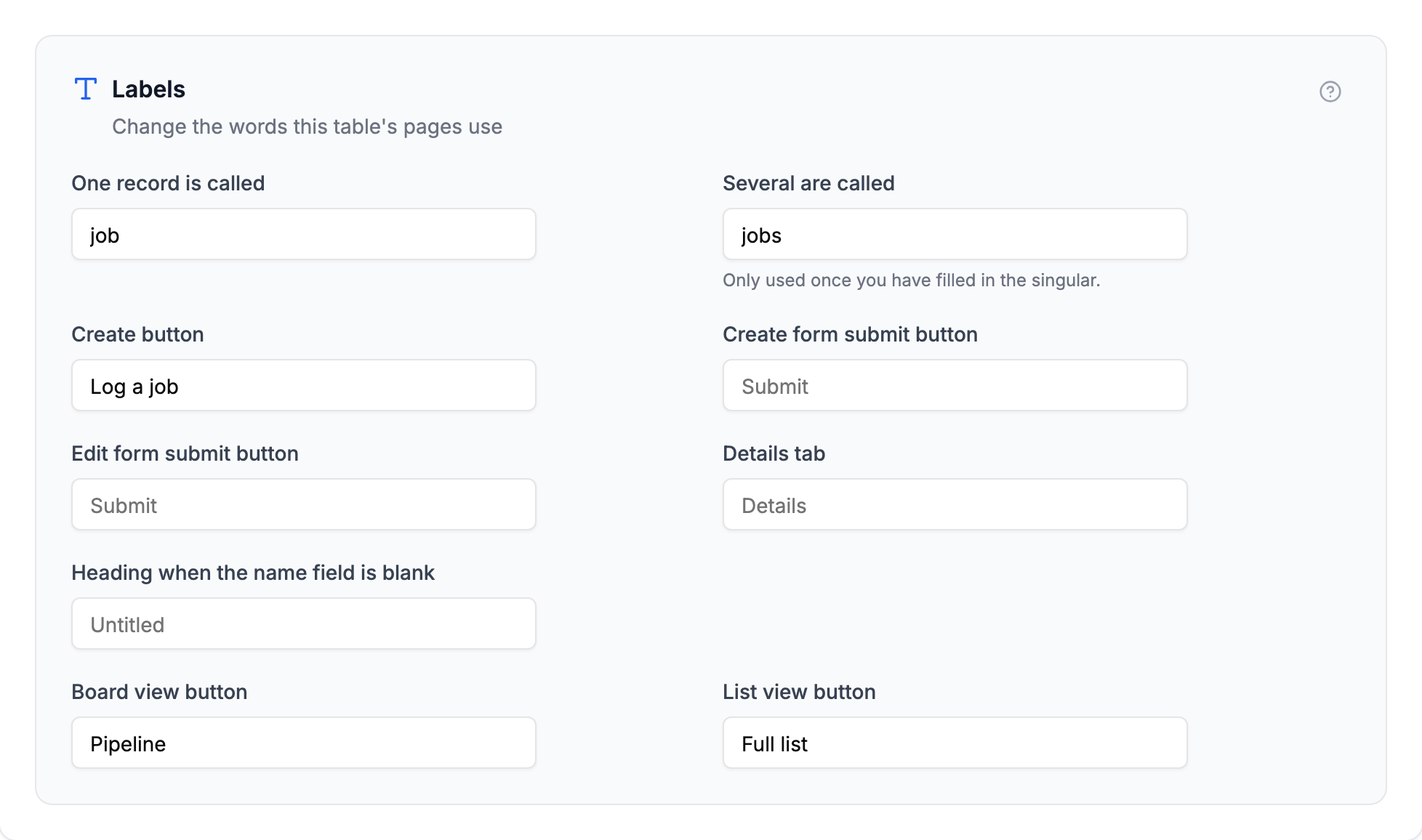
One detail worth knowing: you set the singular and the plural separately. Type the singular and we fill in the plural with an "s" on the end, which is right for jobs and claims and wrong for boxes, people and entries. It goes in the box next to it so you can see it and fix it.
Renaming the view buttons
Calendar and kanban tables let your users switch how they see the data, and those buttons have their own labels. This is where "List" gets renamed, which is the request that started this off.

If your calendar is a schedule of visits, "Agenda" or "All visits" reads better than "List". You only see the boxes for the view your table actually uses.
Who this helps
Anyone handing a portal to people outside their team, where the wording is part of how professional it looks.
- Maintenance portals, where contractors work jobs and visits, not records
- Client portals, where the words your clients see are part of your brand
- Internal request portals, where "Submit a request" beats "New"
- Insurance portals, where a claim is a claim
- Issue tracking portals, where tickets, bugs and issues are all different words for different teams
It also helps if you run several portals from one Airtable base. Labels are set per table and per role, so the same underlying data can be described differently to different audiences.
How it compares
If you build the same thing in Airtable Interfaces, your users are inside Airtable, seeing Airtable's own chrome and terminology, and they need a seat to get there. A portal you hand to an external user is a different surface, and the words on it are yours to choose.
Most portal builders let you name things somewhere. What we have tried to get right here is the amount of work it takes: one word, set once per table, and about twenty strings follow it, including the ones you would not think to go and find. See how the rest of the setup compares in our Softr comparison.
Getting started
Open your portal in the admin, expand a table, and switch to the Labels tab next to Access and Display. Set what one row is called, press Save, and reload the portal.
Update, September 2026: Labels is now the last of four tabs, after Access, Fields and Display. A table can also have more than one page, and each page has its own labels.
Full details, including how labels work with roles and what they do not change, are in the Labels documentation.
Since this post shipped, labels have grown past renaming: the portal-level strings now have boxes too, which is enough to run your portal in another language.
Let me know how you get on, or if there is a word somewhere in the portal you still cannot change.

About the author
Matt Shepherd
Founder, CollabPortals
Matt is the founder of CollabPortals. A software engineer and Airtable power user who kept running into the same frustration: no easy way to give external users a simple and secure view to edit their data. He built CollabPortals as the lightweight solution to that problem, allowing you to set up a secure, permissioned portal in a few clicks.
Related reading
Maintenance
Let tenants, clients, or building occupants submit fault reports with photos and track repair status through a portal connected to your Airtable maintenance database.
Use caseClients
Give your clients secure, branded access to their project data in Airtable. No extra seats, no code, no complex setup, just share a link.
Use caseInternal Requests
Let employees submit hardware requests, IT tickets, supply orders, and internal service requests through a portal connected to your Airtable operations base.
Use caseInsurance
Give agents, brokers, and clients a secure portal to submit applications, track policy status, and manage underwriting data, powered by your Airtable base.