Group Records in Your Airtable Portal by Any Field
The portal table view can now group records under collapsible headers by any field, each with an exact count, the way Airtable's own grid does. How it works and how to turn it on.

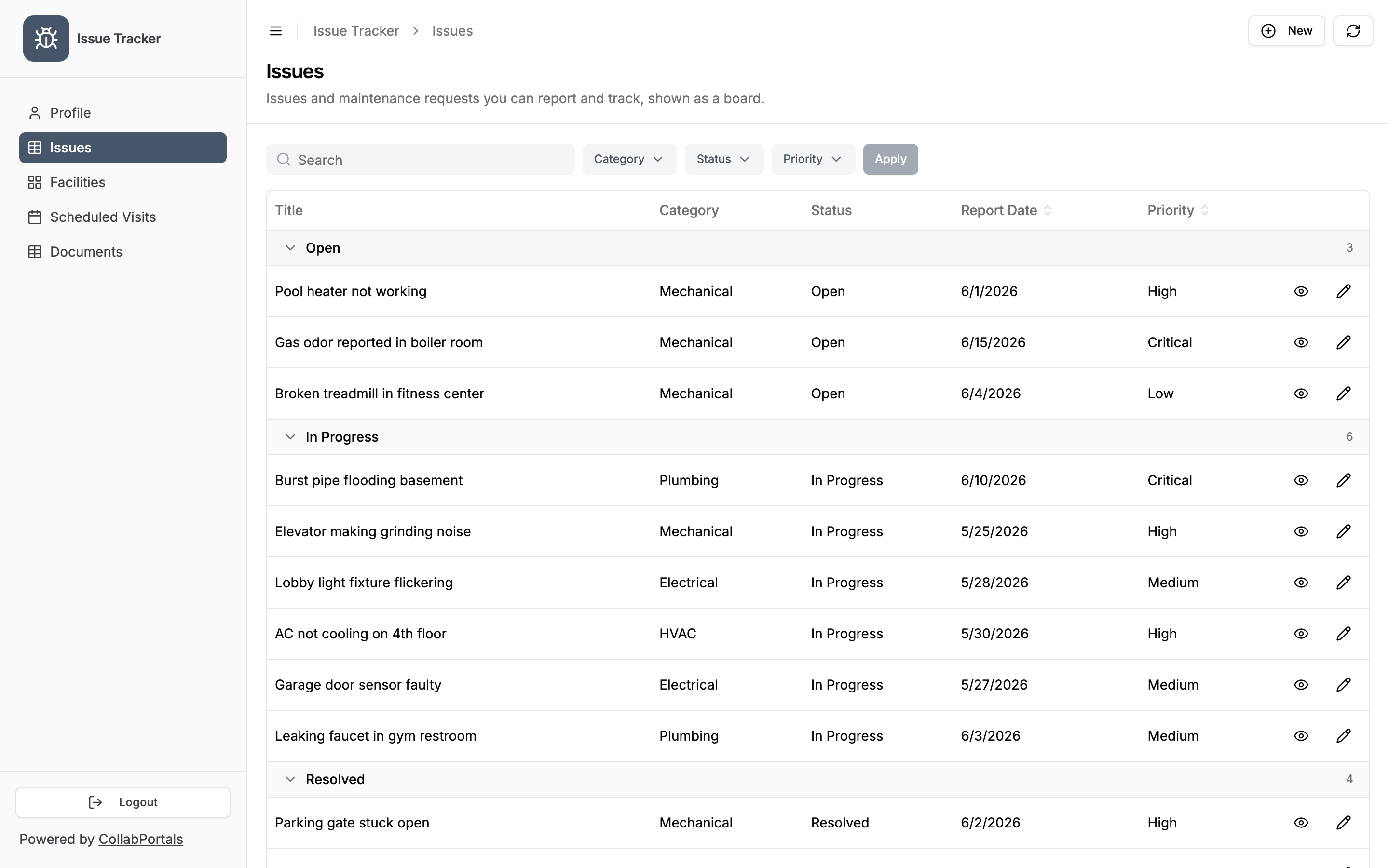
The portal table view can now group records. Pick a field, and rows collect under collapsible headers, one per value, each showing an exact count. It is the same grouping you use in Airtable's grid, now in the portal your users see.
A support portal can show issues under Open, In Progress, and Resolved. A CRM can show deals by stage. A project tracker can show tasks by status. Instead of one long list, users get a structured view they can scan and collapse.
What It Does
Turn on grouping for a table and every record sorts into a block by its value on the field you choose:
- Collapsible headers, one per value. Each header shows the group's name and how many records it holds. Collapse a group to focus on the rest.
- A "No value" group. Records with nothing in the grouped field collect under their own header at the top, so nothing is hidden.
- Exact counts. The number on each header is the true total for that group, not an estimate or a count of what happens to be on screen.
You can group by a single select, multiple select, checkbox, collaborator, or linked record field. Date, number, and text fields are left out on purpose: they produce too many groups to be useful.
See It in Action
Set the default grouping in the portal admin, on the table's Display tab. The Group by dropdown appears when the view type is Table.
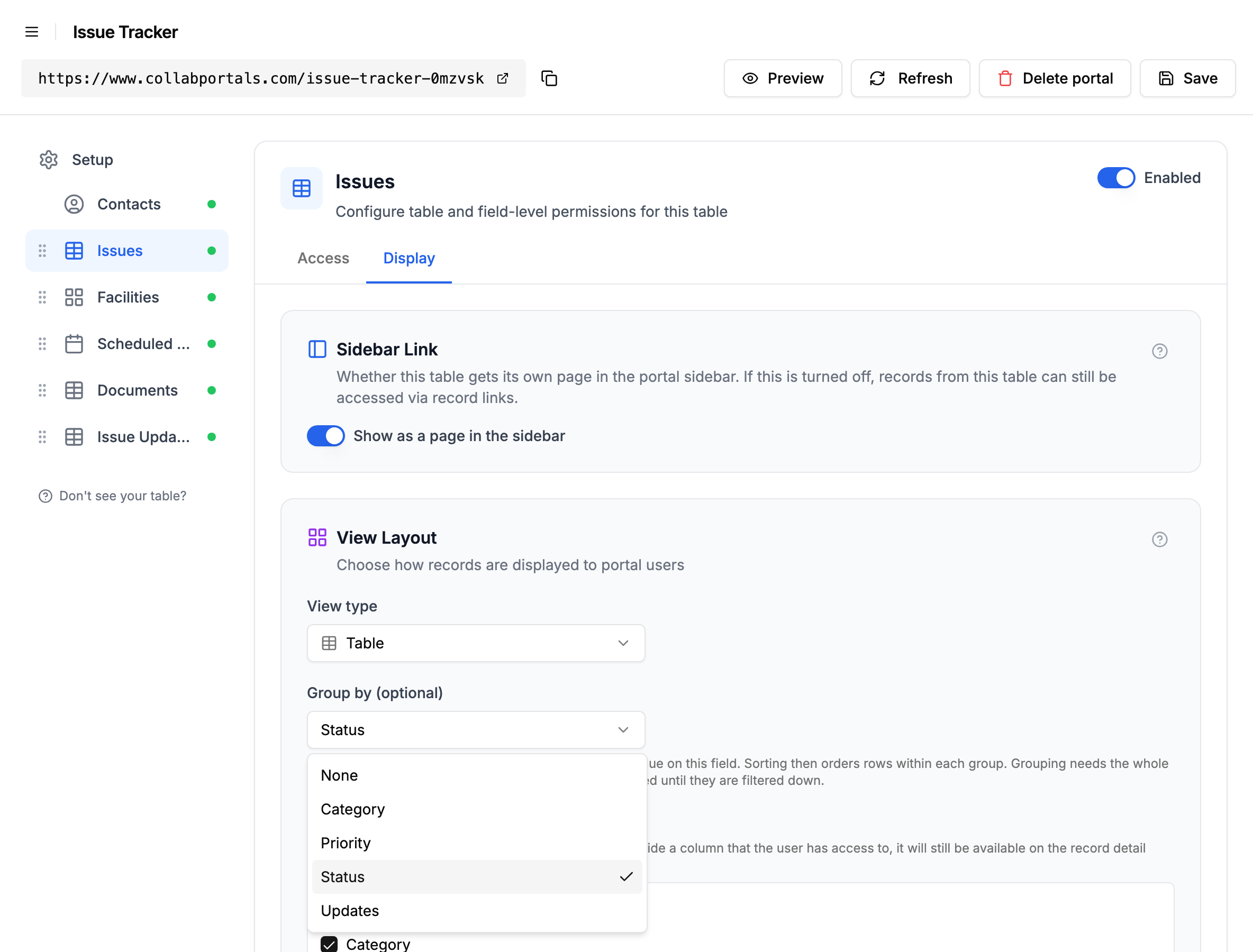
Your users then see the table grouped, with a count on every header.
You can also let end users pick the grouping themselves from the table toolbar, on top of the default you set. That is part of the filter, search and sort controls.
Counts Stay Exact, Even on Big Tables
An honest count needs the whole result set, and the portal normally loads records a page at a time. So when grouping is on, it pulls the full table before it groups. That keeps every count exact.
Above 500 records it stops pulling and shows the table ungrouped with normal pagination, along with a short note explaining why. It never hides records to keep grouping on; it drops the grouping and keeps every row. Filter the table down below the limit and the grouping comes back.
Who This Helps
Grouping earns its place anywhere a table has a natural status or category:
- Issue and ticket tracking: group by status or priority so open work is obvious.
- Project management: group tasks by stage, owner, or milestone.
- CRM portals: group deals by stage to read the pipeline at a glance.
- Sales rep portals: group accounts by region or tier.
How It Compares
Grouping is familiar from Airtable's own grid, and it is table stakes in some portal tools: Noloco groups its collection views, and Airtable Interfaces group records too, though everyone who opens an Interface needs an Airtable seat. Others still do not: Softr's list blocks have no native group-by, so people fall back to pre-grouping a view in Airtable.
CollabPortals gives you the grouped, counted layout with your data staying in Airtable, granular per-role permissions, and a flat price no matter how many users open the portal.
More in This Release
Grouping ships alongside a related permissions update: a table can now define record ownership through a lookup field, so a table that reaches your user table only indirectly (say Structures to Cities to Members) can still show each user only their own records, with no denormalized link to keep in sync. See Record Ownership for the details.
Get Started
Open any portal, pick a table, and set Group by on its Display tab. If you are new to CollabPortals, start a portal and connect your Airtable base first. Full reference in the View Types doc.

About the author
Matt Shepherd
Founder, CollabPortals
Matt is the founder of CollabPortals. A software engineer and Airtable power user who kept running into the same frustration: no easy way to give external users a simple and secure view to edit their data. He built CollabPortals as the lightweight solution to that problem, allowing you to set up a secure, permissioned portal in a few clicks.
Related reading
Issue Tracking
Let tenants, customers, or end users report issues and track resolution status through a portal connected to your Airtable maintenance database.
Use caseProject Management
Give clients and external collaborators a branded view into their projects in Airtable, with controlled access to tasks, timelines, and deliverables.
Use caseCRM
Give your clients a branded portal to view their account data, deals, contacts, sites, activity, directly from your Airtable CRM. No extra seats, no code.
ComparisonCollabPortals vs Softr: Lightweight Portal or Full App Builder?
Compare CollabPortals and Softr for Airtable portals. See how a $10/month focused portal tool stacks up against a full no-code app builder starting at $49/month.