Add Pages to Your Airtable Portal, Including Two Views of One Table
A portal page no longer has to mean one table shown one way. Add pages, show a table as a board on one and a calendar on another, and give each its own name and address.

One table, more than one job
Until this week, a CollabPortals portal had one page per Airtable table. Different roles could see that page in different layouts, but any one role saw a table one way. That held up until the same people needed a table two ways.
A Jobs table is the usual example. The office wants a kanban board, grouped by status, to move jobs along during the day, and a calendar of due dates to plan the week. Same people, same records, and until now you had to pick one of those views.
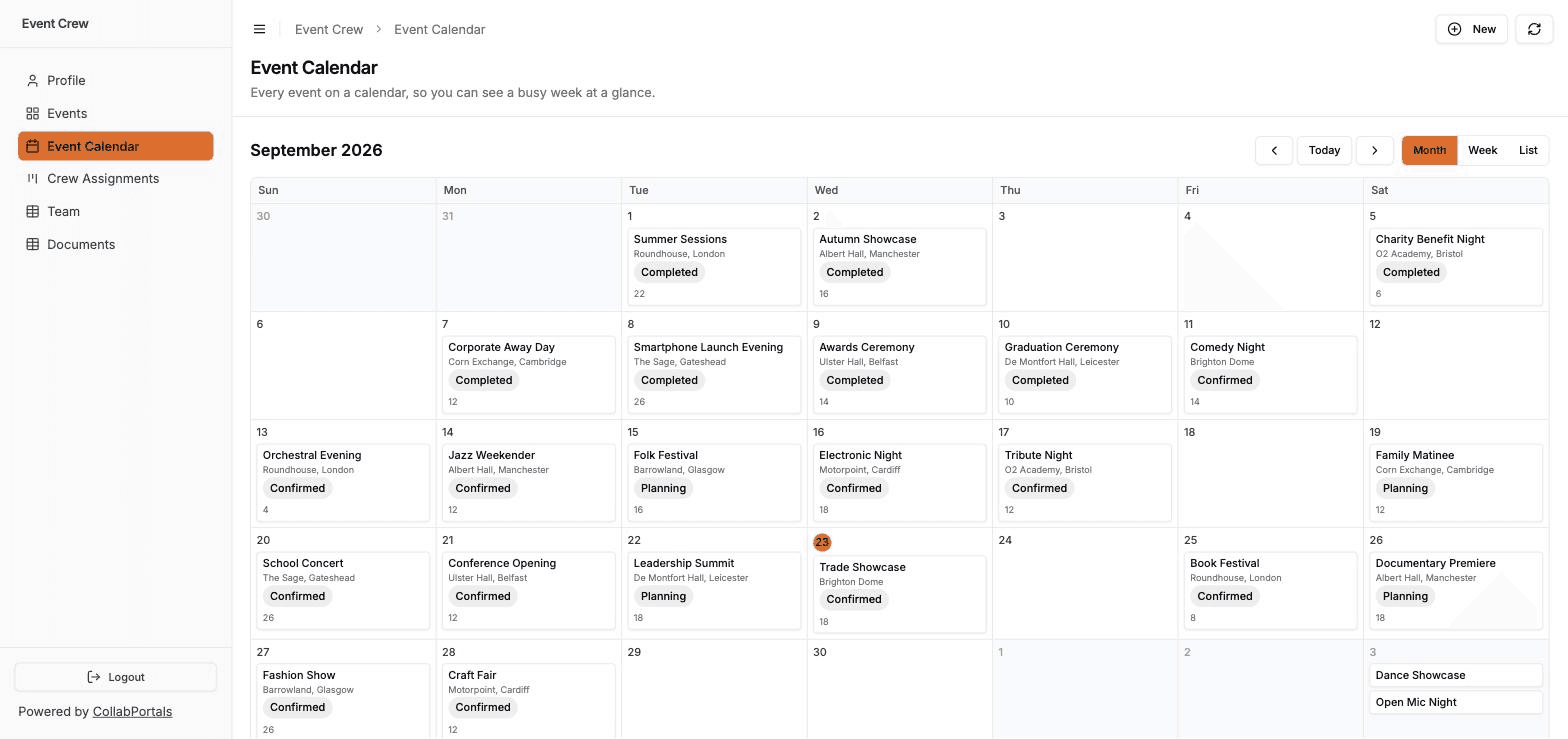
Now you can add a page. A table can have as many as you need, each with its own view, and each in the sidebar under its own name.
Adding a page
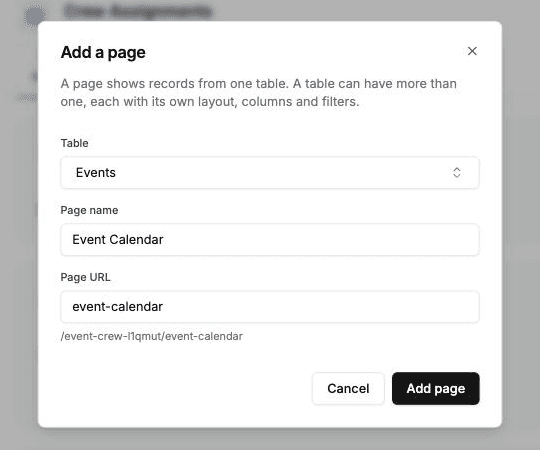
In the portal admin, press Add page under the list of pages, pick the table, and type a name. The Page URL fills in from the name as you type, and you can change it.
Then set the new page up the way you would any other: pick its view type and columns on the Display tab, its field order on Fields, its name and wording on Labels. Press Save and it appears in the portal for every role that can see its table.
Pages can be dragged into the order you want, and deleted with the x beside their name. Deleting a page removes its layout and its address. The table keeps its permissions and its other pages.
What each page decides, and what it doesn't
This is the part worth understanding before you add one.
The page decides what it lists and how records look. Its own page filter, view type, the columns or card fields, grouping, the default sort, the filter and sort controls, whether users can export, the field order, the page name and all its wording. Two pages of one table can differ in every one of those.
The table decides who sees what. Table permissions, record visibility, the record filter, and each field's View, Create, Edit and Required switches. These are set once, on the table's main page, and every page of that table uses them.
So a page can show less than its table, never more. A page filter narrows what the table already lets a role see, so one Jobs table can be an Open jobs page and a Closed jobs page, but no page can ever show someone a record the table keeps from them.
A page filter decides what a page lists, not who can open a record. A job it leaves out can still be opened from a linked record elsewhere. To keep records from a role, use the record filter on the table's Access tab. The portal pages guide covers the details.
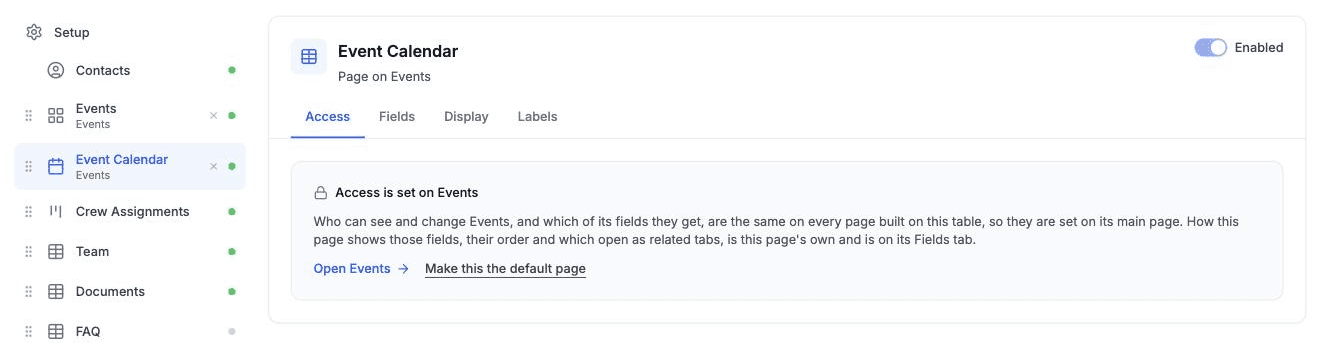
One page of each table is its main page. It is where the table's access settings live, and it is the page that opens when a link uses the table's Airtable id. The others show a note pointing back to it. You can make any page the main one from its Access tab.
Names and addresses
Two smaller changes that shipped earlier this month make this work properly.

Page names. A page used to be called whatever the Airtable table was called, so a table named for your team, like "Jobs (2024 import)", showed up in the sidebar under that name. Every page now has a name and a description on its Labels tab, apart from the profile page's name, which is set in the portal's own labels. The sidebar, the home page card, the page heading and the trail above a record all use them. Leave them empty and the portal falls back to the table's name and description. This is also how you translate a page name without renaming a table your automations rely on.
Page addresses. A page's web address used to be its Airtable table id, so a link looked like /acme/tblXk2p9QrsT4. Now it can be a word you choose: /acme/jobs, or portal.acme.com/jobs on a custom domain. The table id address keeps working, so links people already have do not break.
A table's second page needs an address of its own, because the table id opens the main page. The Add page dialog fills one in for you.
Who this helps
Any portal where the same people need one table more than one way.
- Maintenance portals, where the office moves jobs along on a board and plans the week from a calendar of the same jobs
- Event scheduling portals, with a calendar for browsing the season and a sortable table for checking capacity
- Project management portals, with a kanban of tasks and a table of the same tasks sorted by due date
How it compares
Page builders start from pages. In Softr you add a page, set its name and URL slug in its settings, and place blocks on it, so a second view of one table is a second page with a second block. Noloco's guides suggest adding another sidebar menu item to show the same collection a different way, and Noloco keeps page visibility separate from the table permissions set on the data, which is the same split described above.
CollabPortals starts from your base instead: every table arrives as a page when you build the portal, with its permissions already in place. What changed is that you are no longer limited to one page per table. There is still no canvas and no blocks, so the trade-off is the one it has always been. You get fewer layout choices, and much less to set up.
Getting started
Open your portal in the admin and press Add page under the list of pages. The portal pages guide covers adding, deleting and reordering pages and choosing a main page, and page addresses lists the addresses you cannot use.
Let me know what you end up putting on a second page.

About the author
Matt Shepherd
Founder, CollabPortals
Matt is the founder of CollabPortals. A software engineer and Airtable power user who kept running into the same frustration: no easy way to give external users a simple and secure view to edit their data. He built CollabPortals as the lightweight solution to that problem, allowing you to set up a secure, permissioned portal in a few clicks.
Related reading
Maintenance
Let tenants, clients, or building occupants submit fault reports with photos and track repair status through a portal connected to your Airtable maintenance database.
Use caseEvent Scheduling
Give speakers, authors, tutors, and performers a self-service portal to view their upcoming events, confirm availability, and access venue details from your Airtable schedule.
Use caseProject Management
Give clients and external collaborators a branded view into their projects in Airtable, with controlled access to tasks, timelines, and deliverables.
ComparisonCollabPortals vs Softr: Lightweight Portal or Full App Builder?
Compare CollabPortals and Softr for Airtable portals. See how a $10/month focused portal tool stacks up against a full no-code app builder starting at $49/month.